

Things Required Before You Proceed
Make sure you have everything you need at hand! Here are the things you'll need:
- Your Android device must have Android OS 11.0 or higher. Check the version by clicking on this link.
- Your Android device needs to be connected to the Internet throughout the installation process.
- You must have physical access to the kid's device to install FamilyTime Jr. Elite
- A FamilyTime account in good standing is required. If you don't already have one, please Signup now.
Please open https://store.familytime.io/ and tap on the "INSTALL" button.
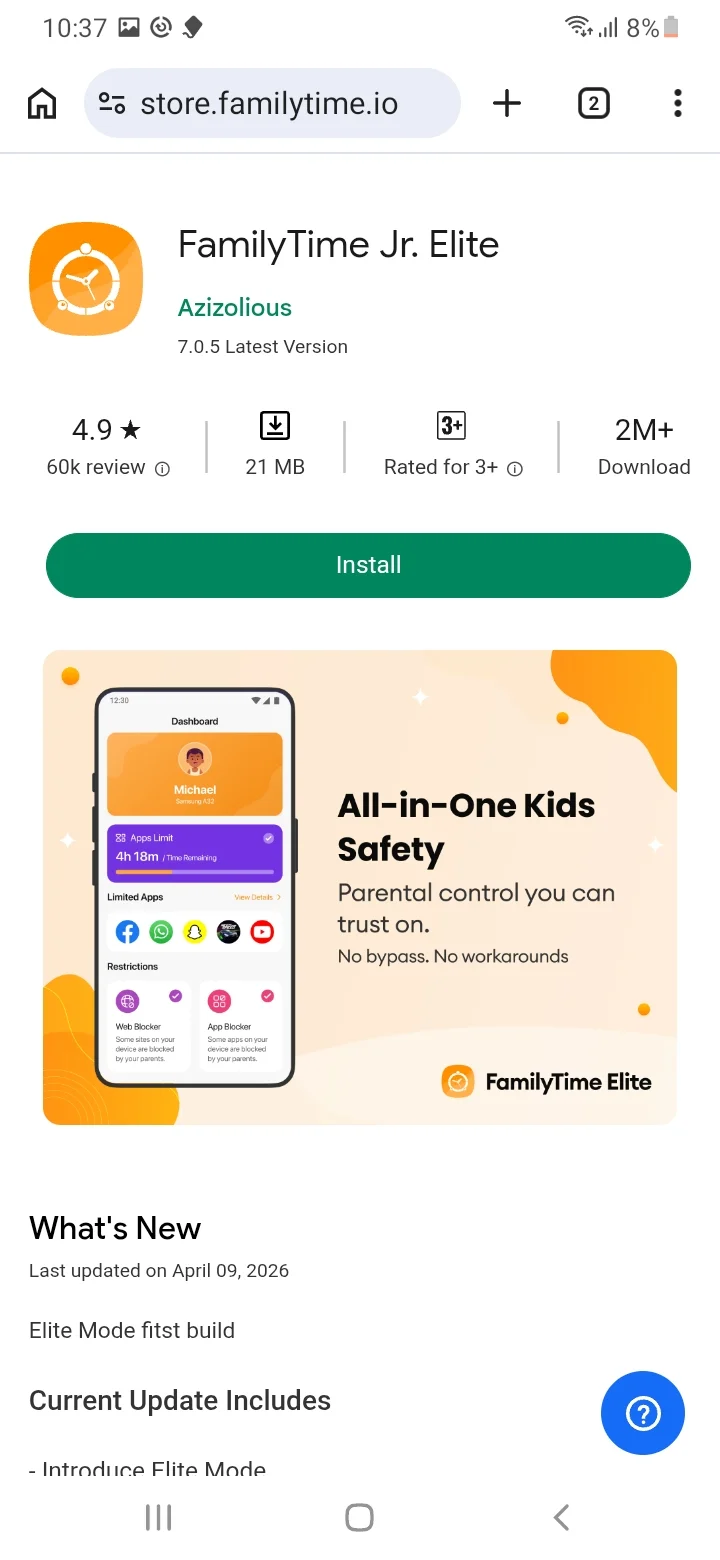
Family Time Jr. Elite app will be downloaded in the internal storage folder.
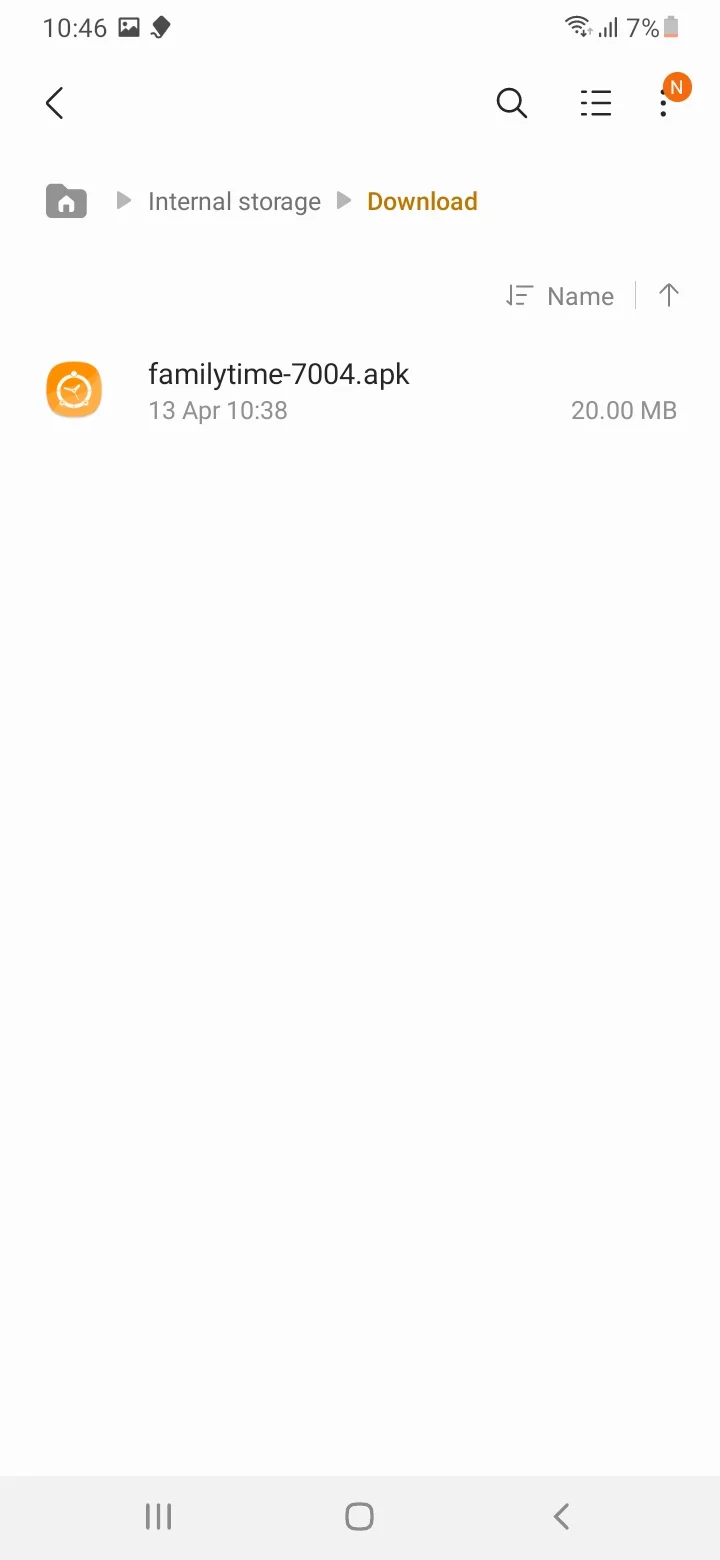
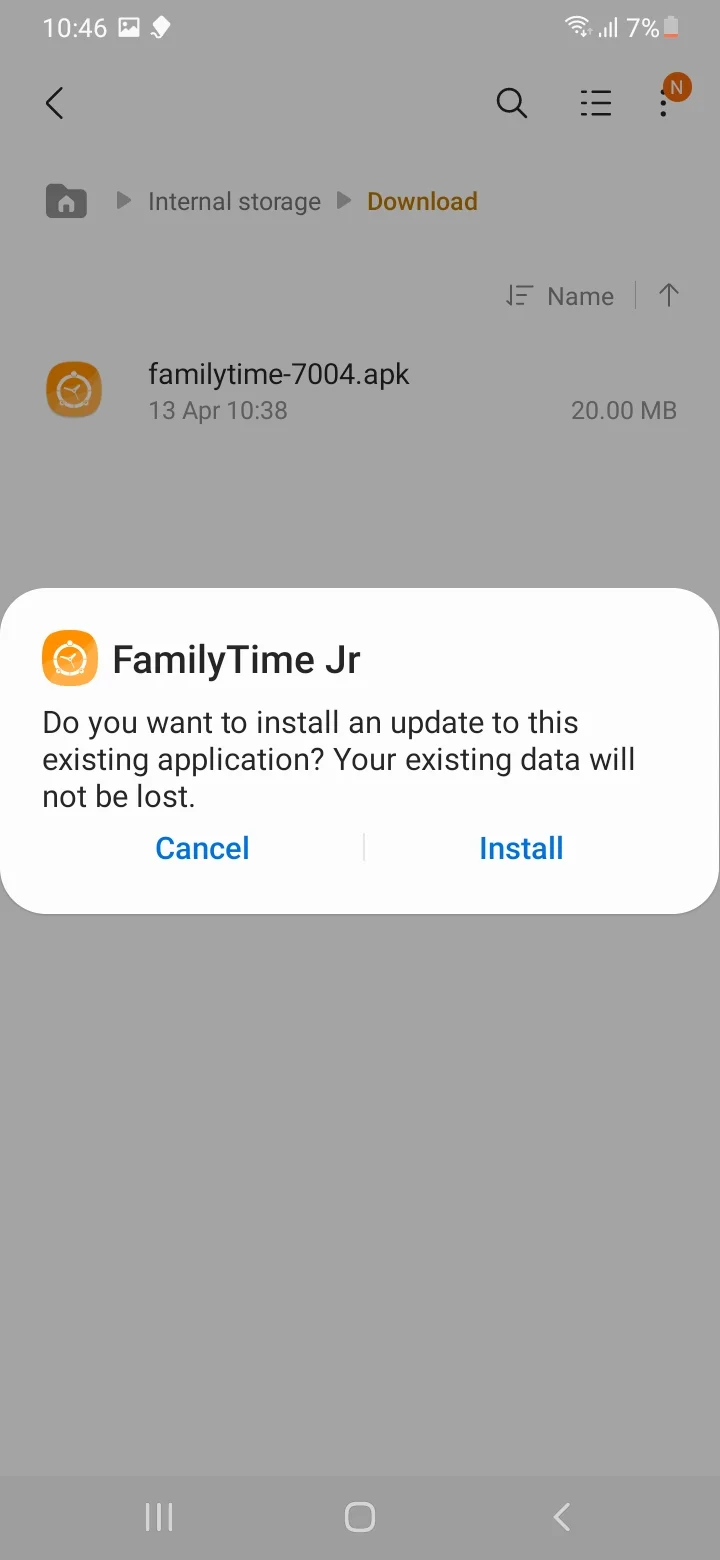
Go to the download folder and double tap to install FamilyTime Jr. Elite App.
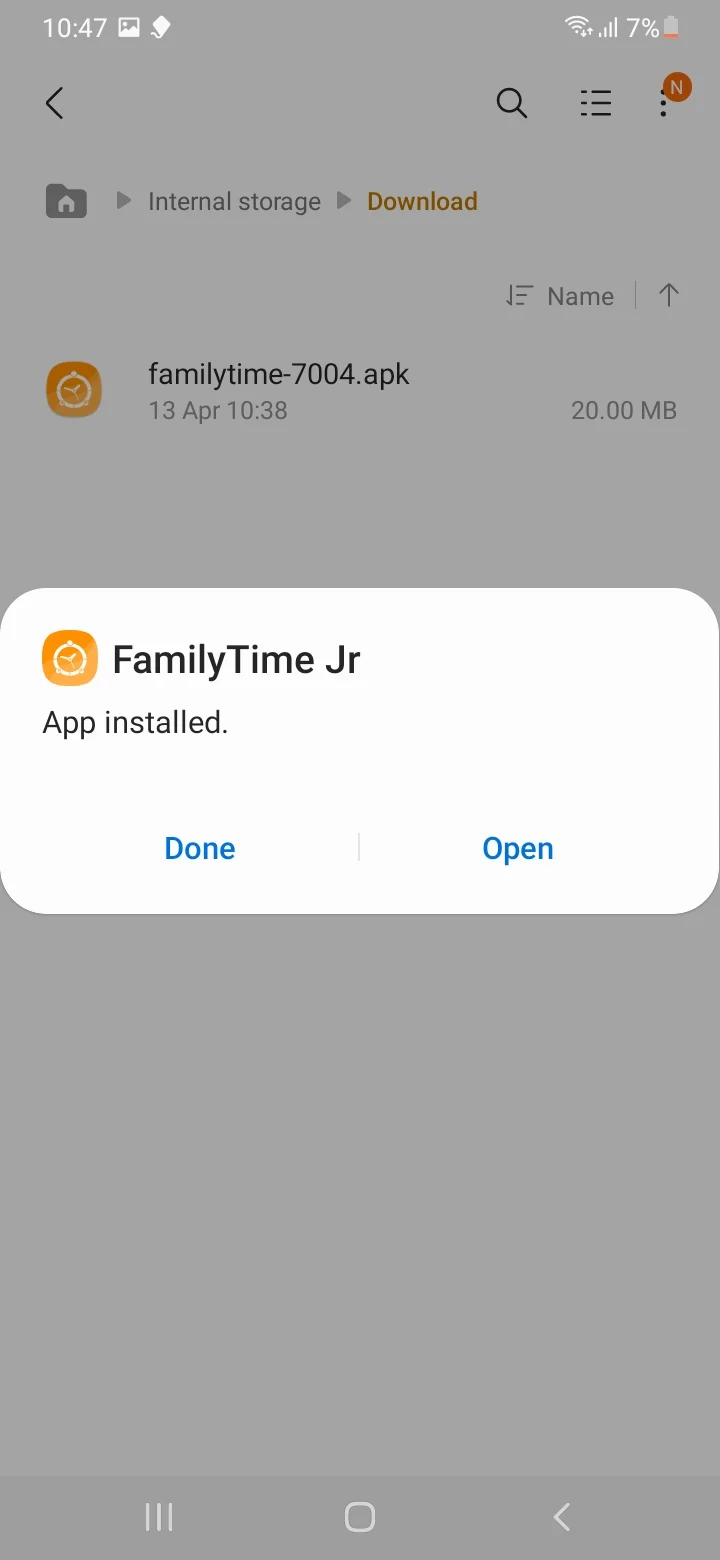
When installation is complete, please tap "Open".
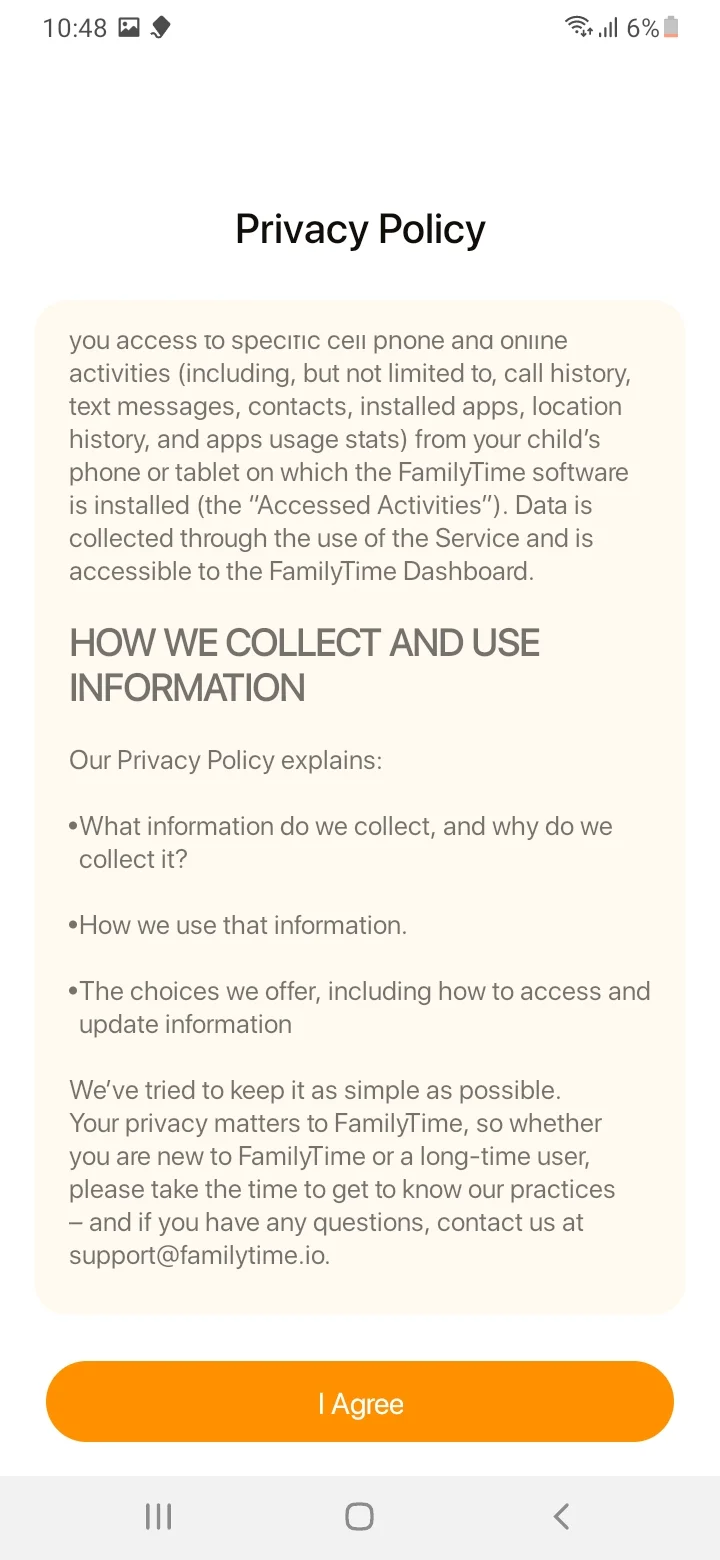
Tap "I Agree" to our Privacy Policy to continue.
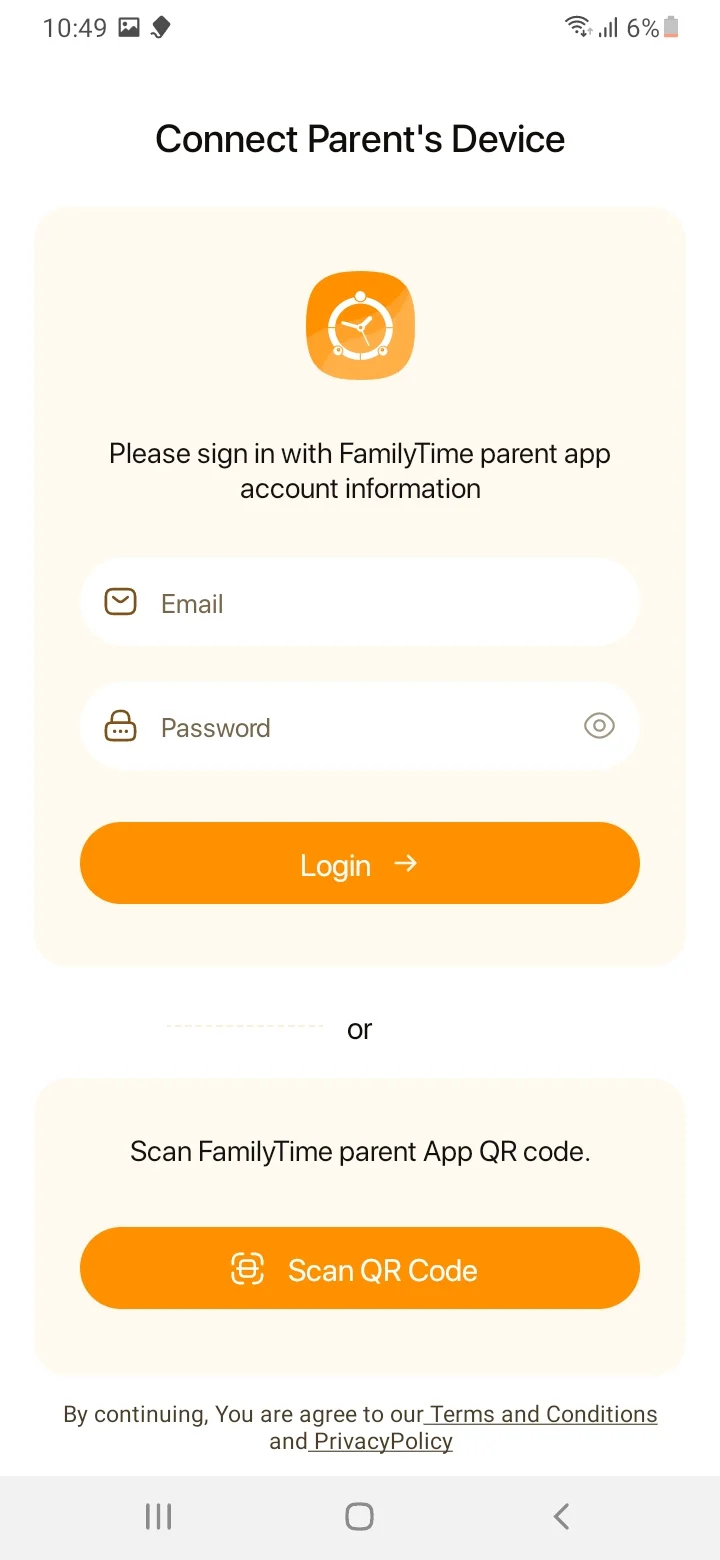
Enter parent email and password to pair or activate the child device.
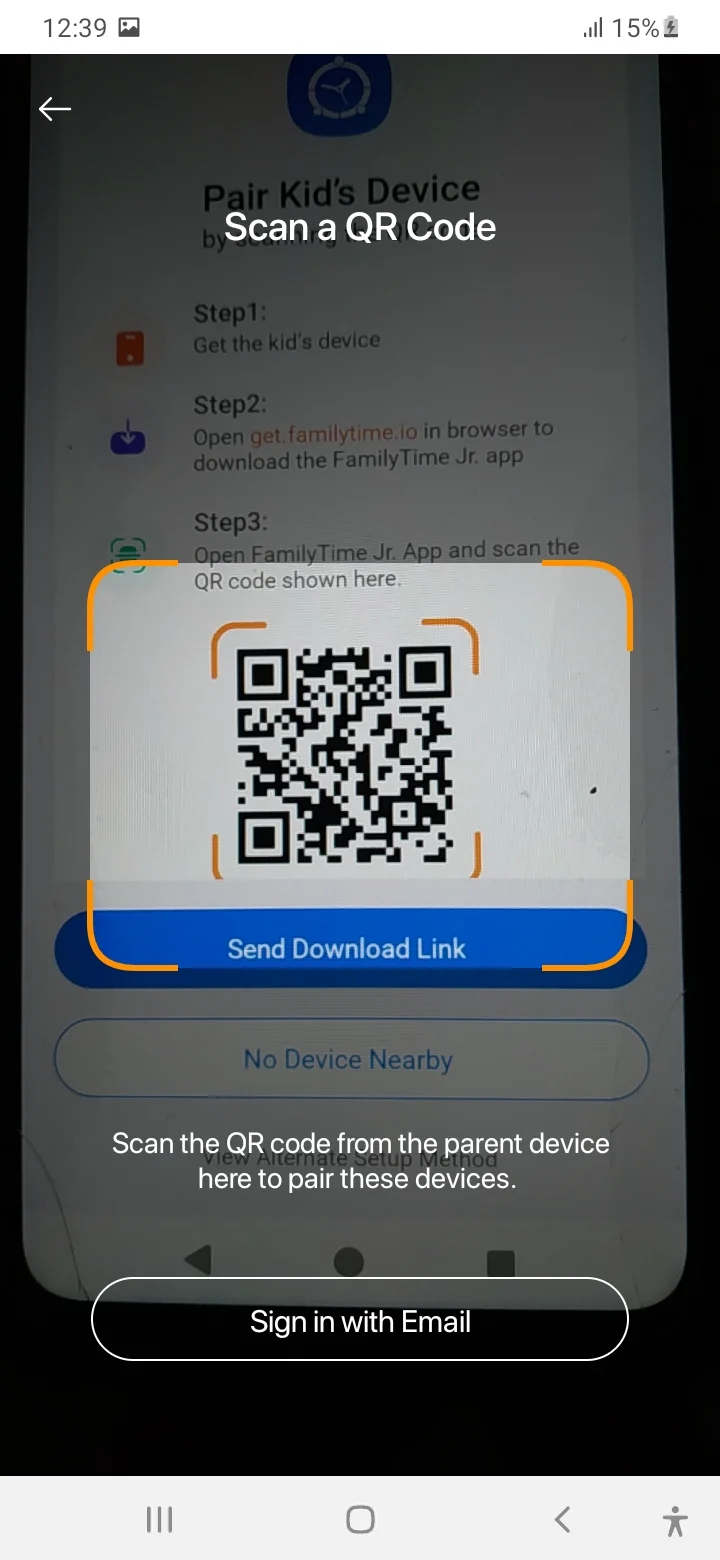
You can also scan the QR Code to to pair or activate the child device..
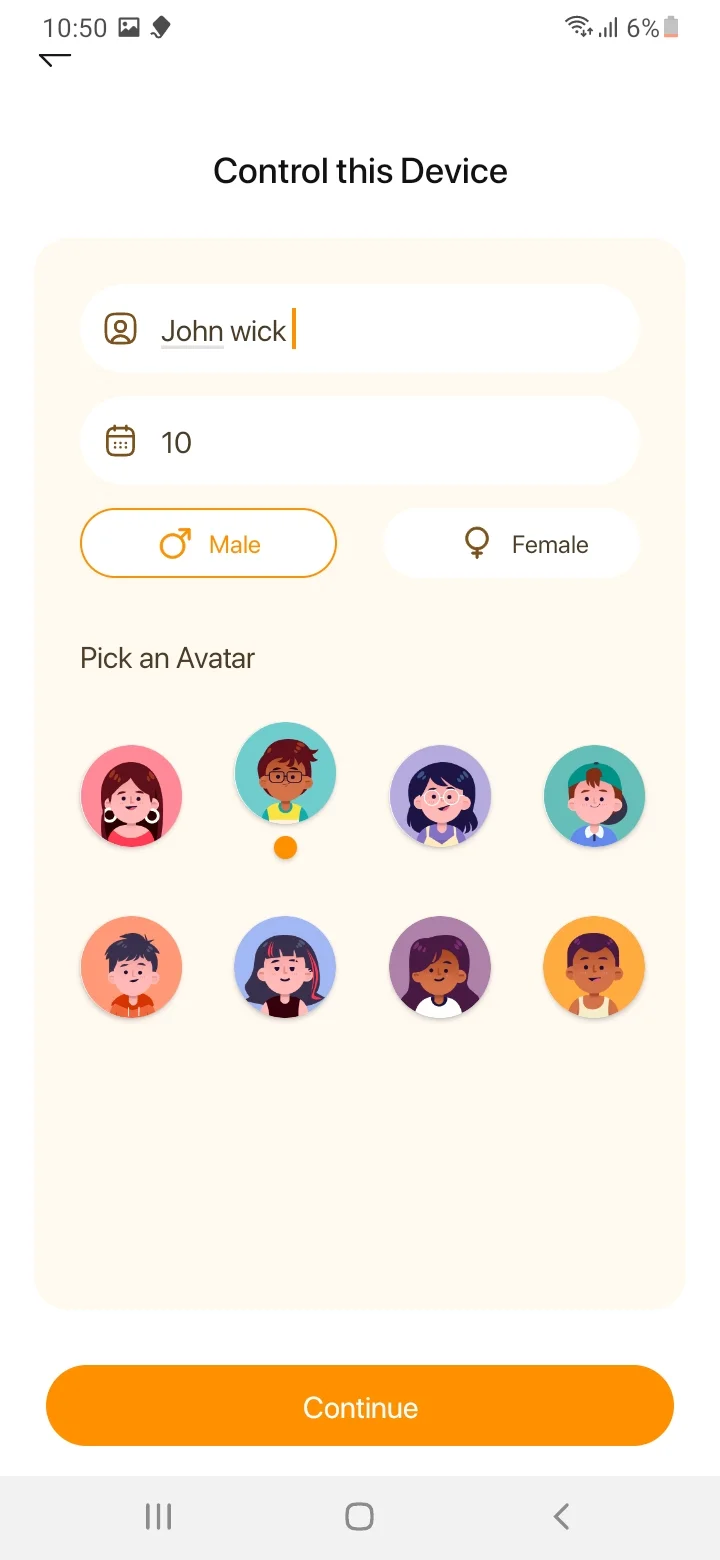
Enter "Child Name & Age," select "Gender" and "Avatar" Tap "Continue".
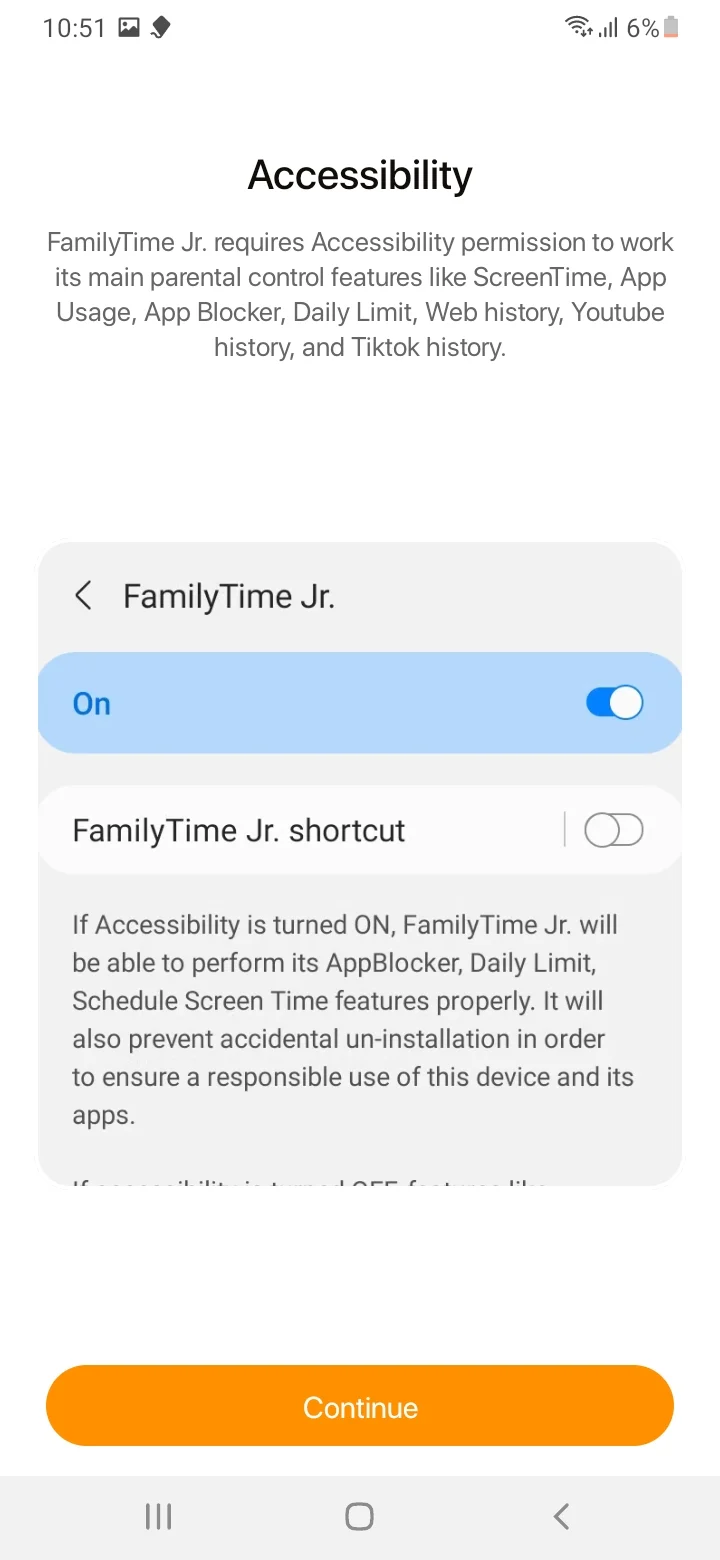
Tap "Continue" with "Accessibility" permissions.
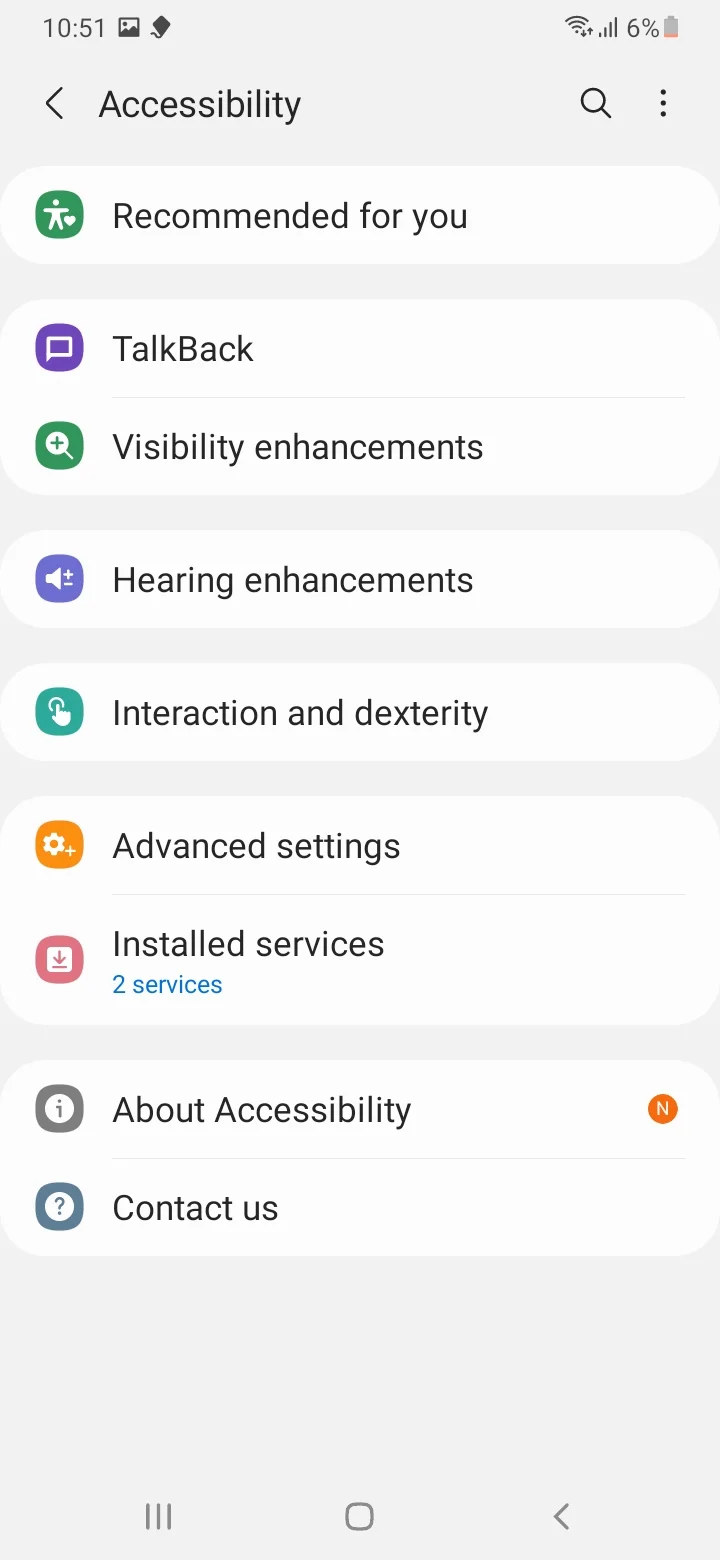
Tap "Installed Services".
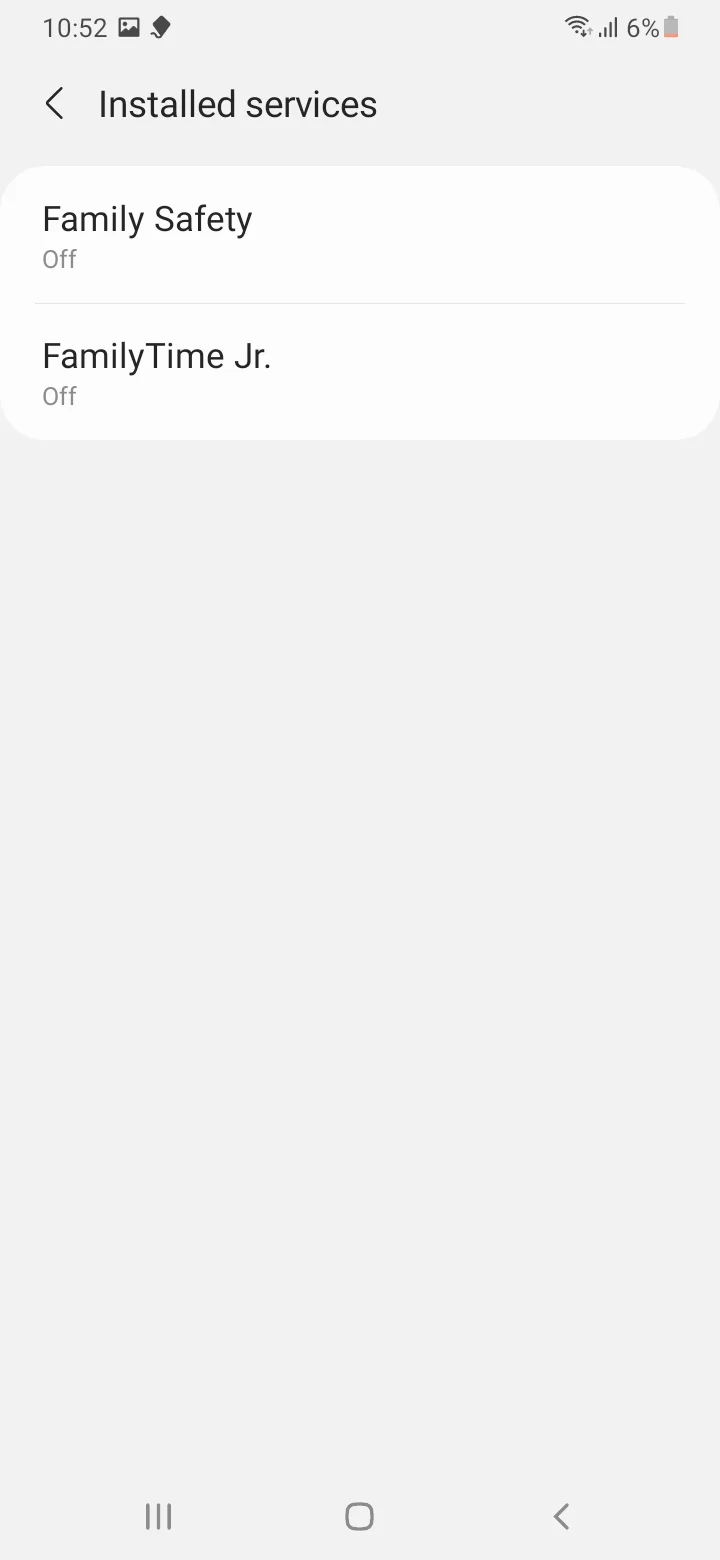
Tap "FamilyTime Jr.".
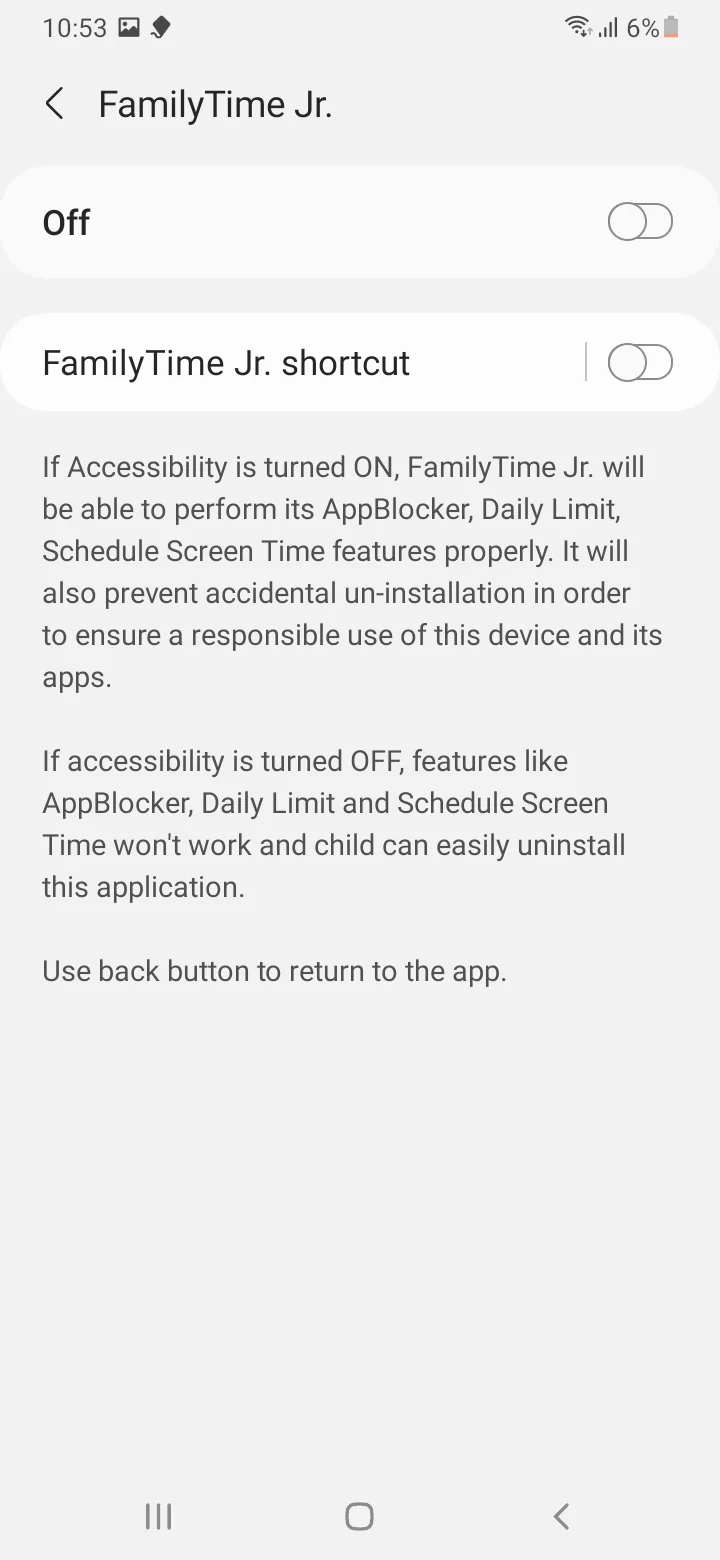
Tap on Toggle to turn it "On".
Tap "Allow" to turn it on.
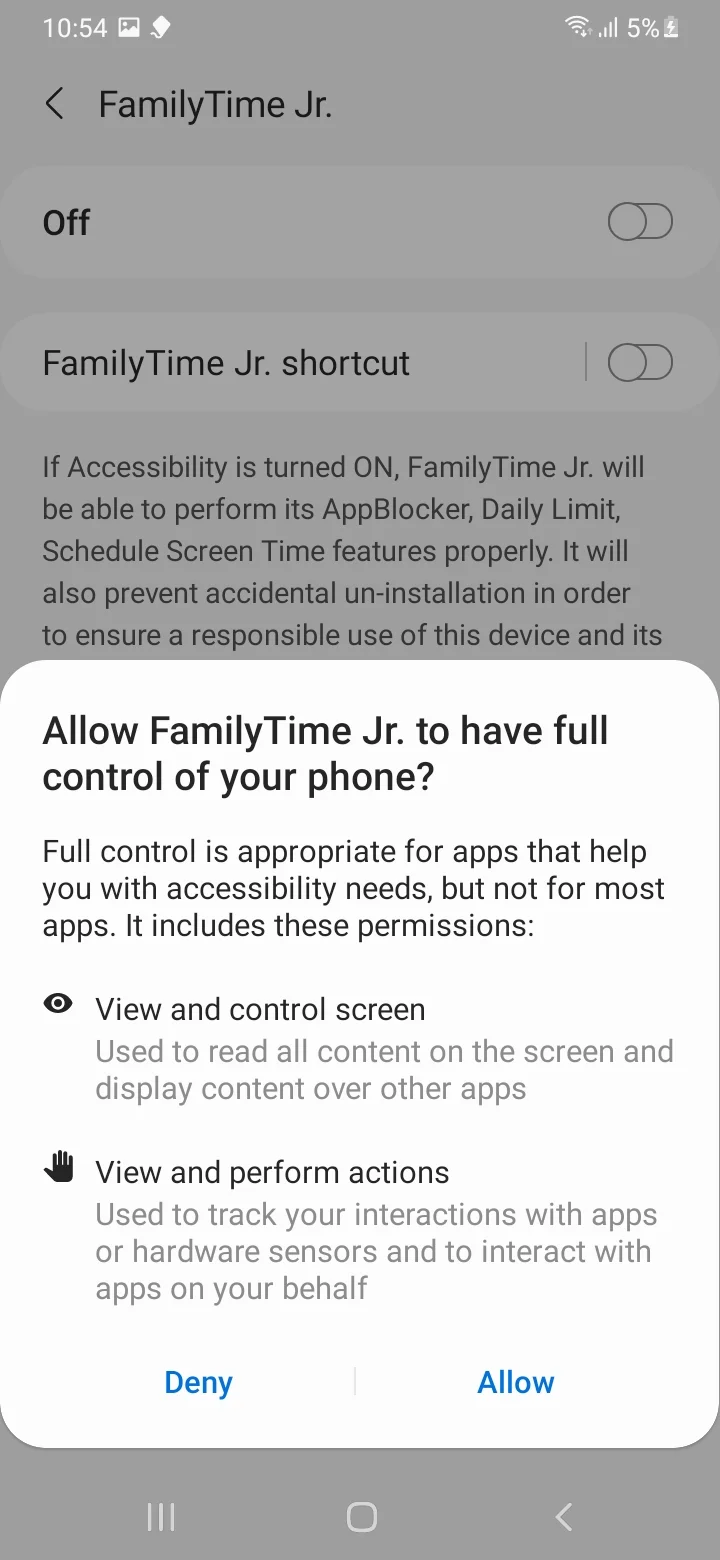
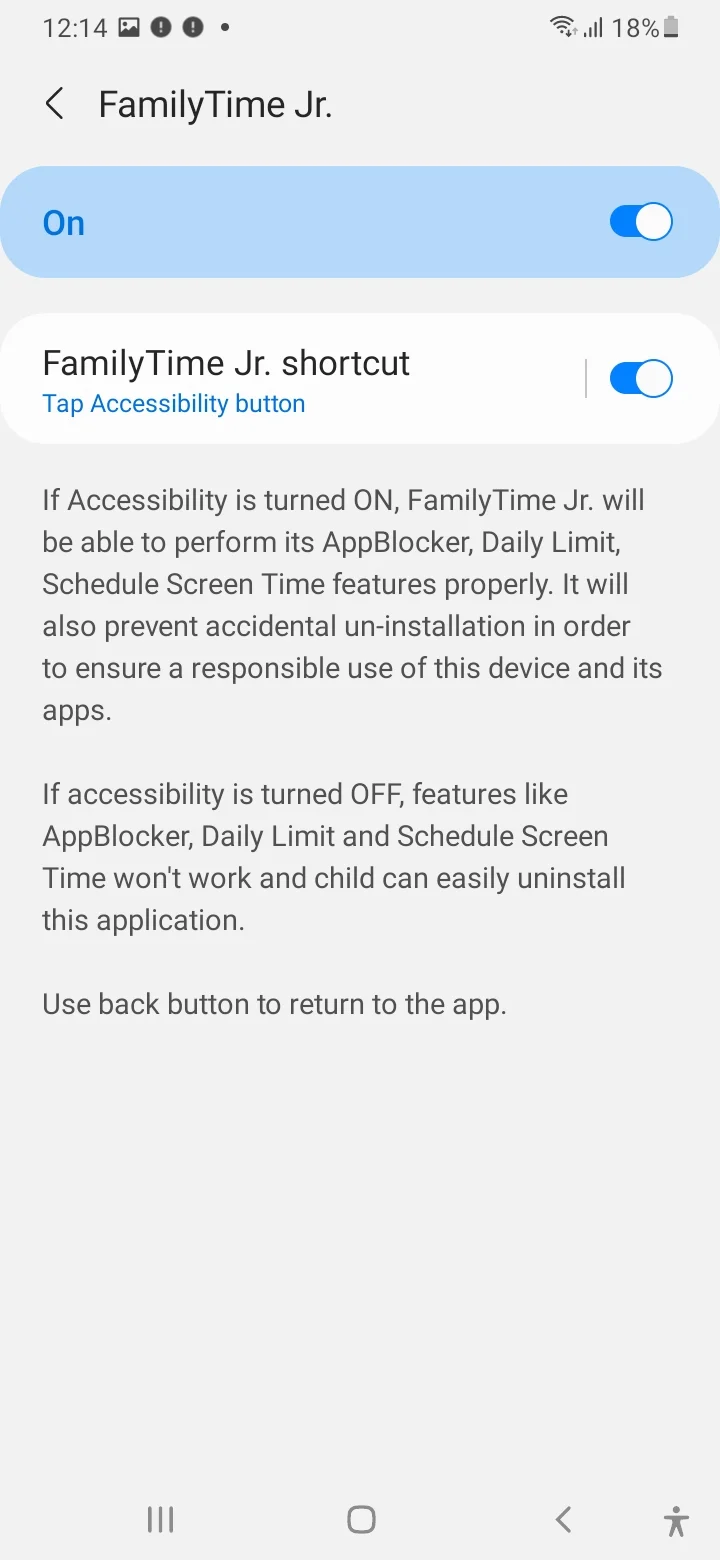
Toggle "FamilyTime Jr. Shortcut," on, Tap "Allow" to confirm.
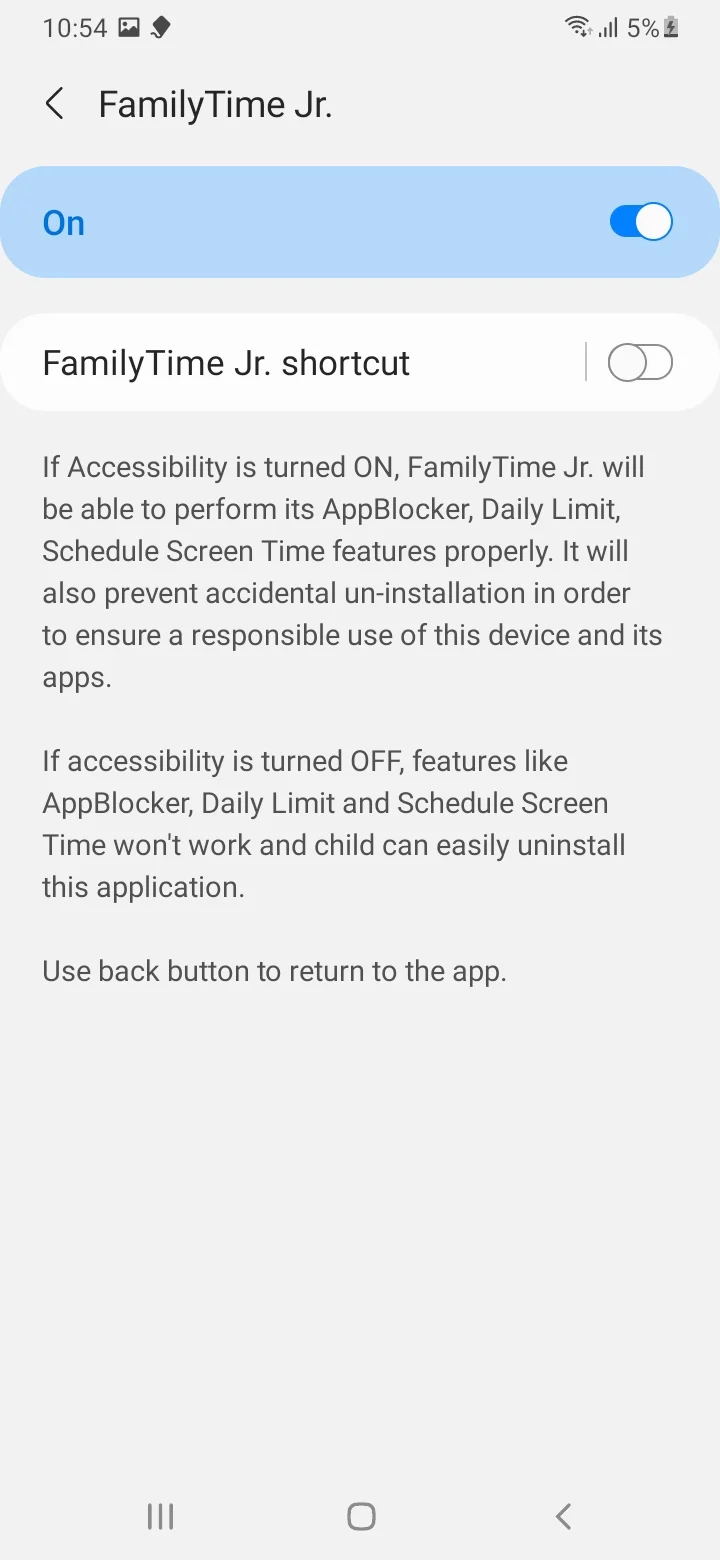
Accessibility permission is turned on.
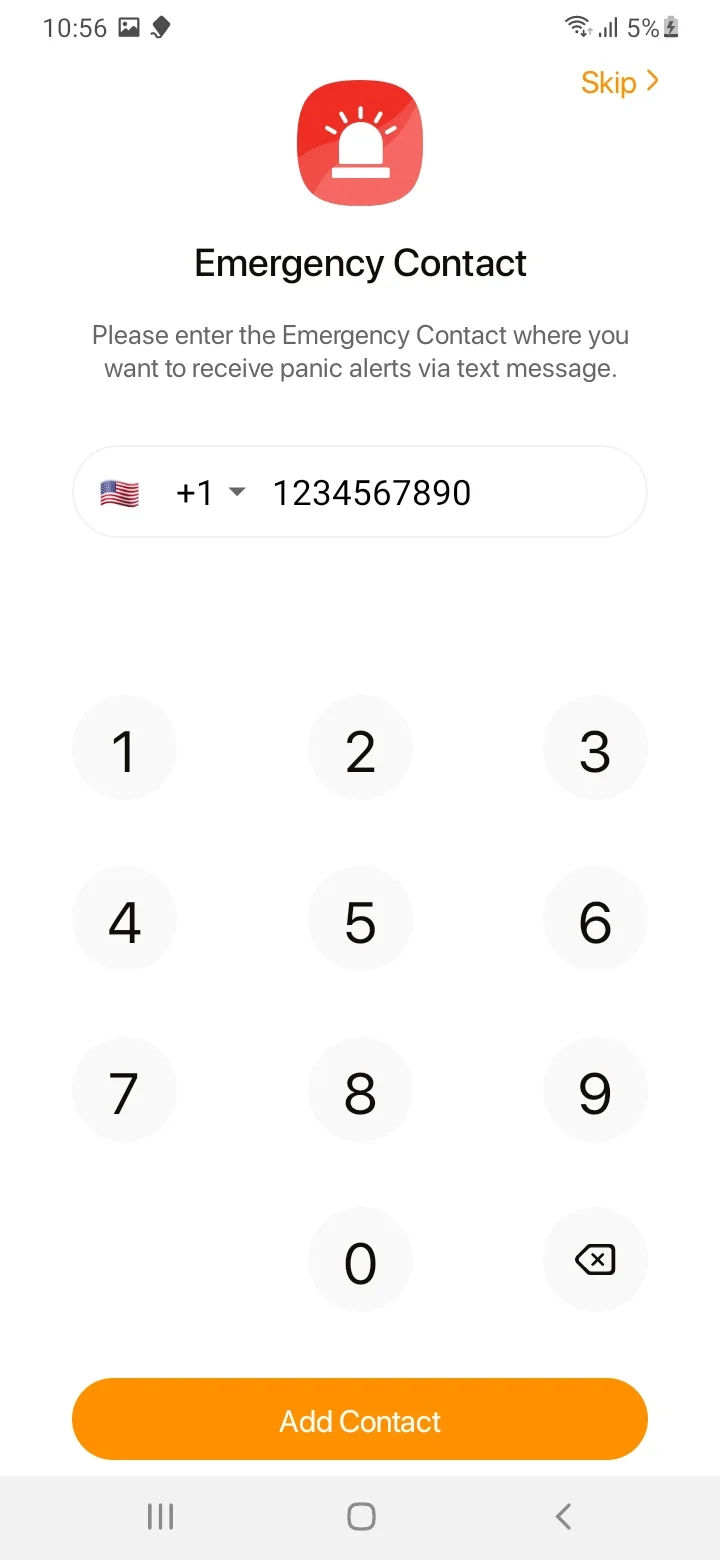
Add emergency contact number and tap on "Add Contact". You can also skip this step.
Tap "Continue" for battery optimization.
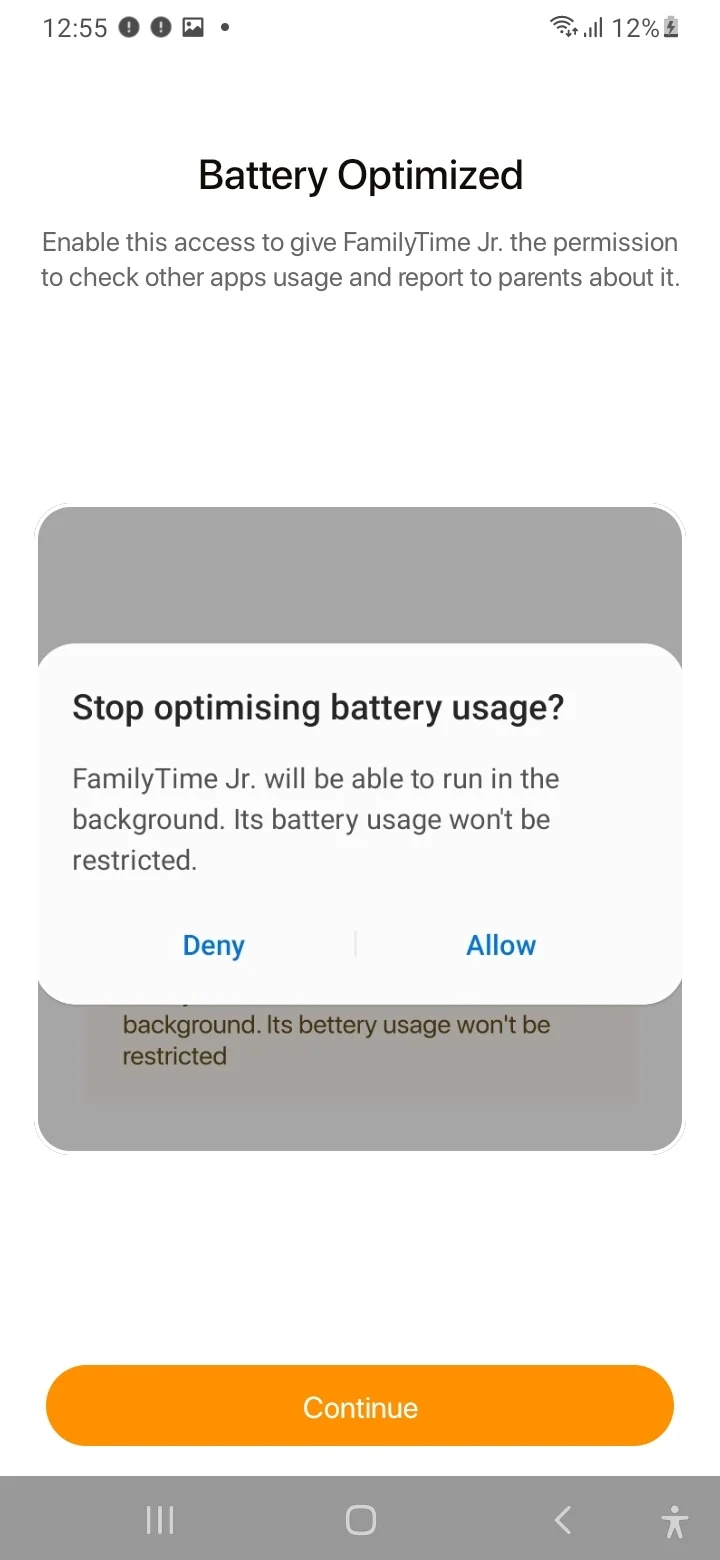
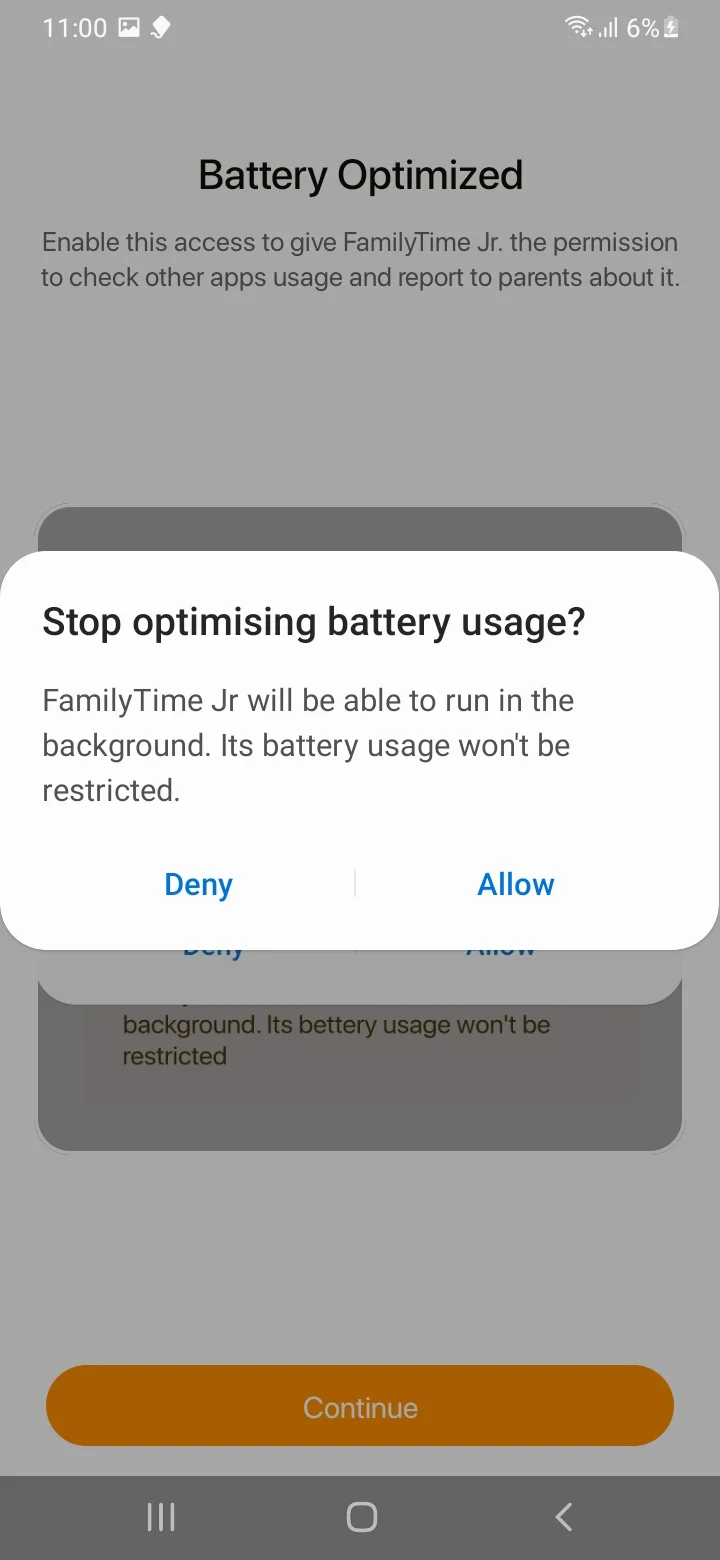
Tap "Allow" to stop battery usage optimization.
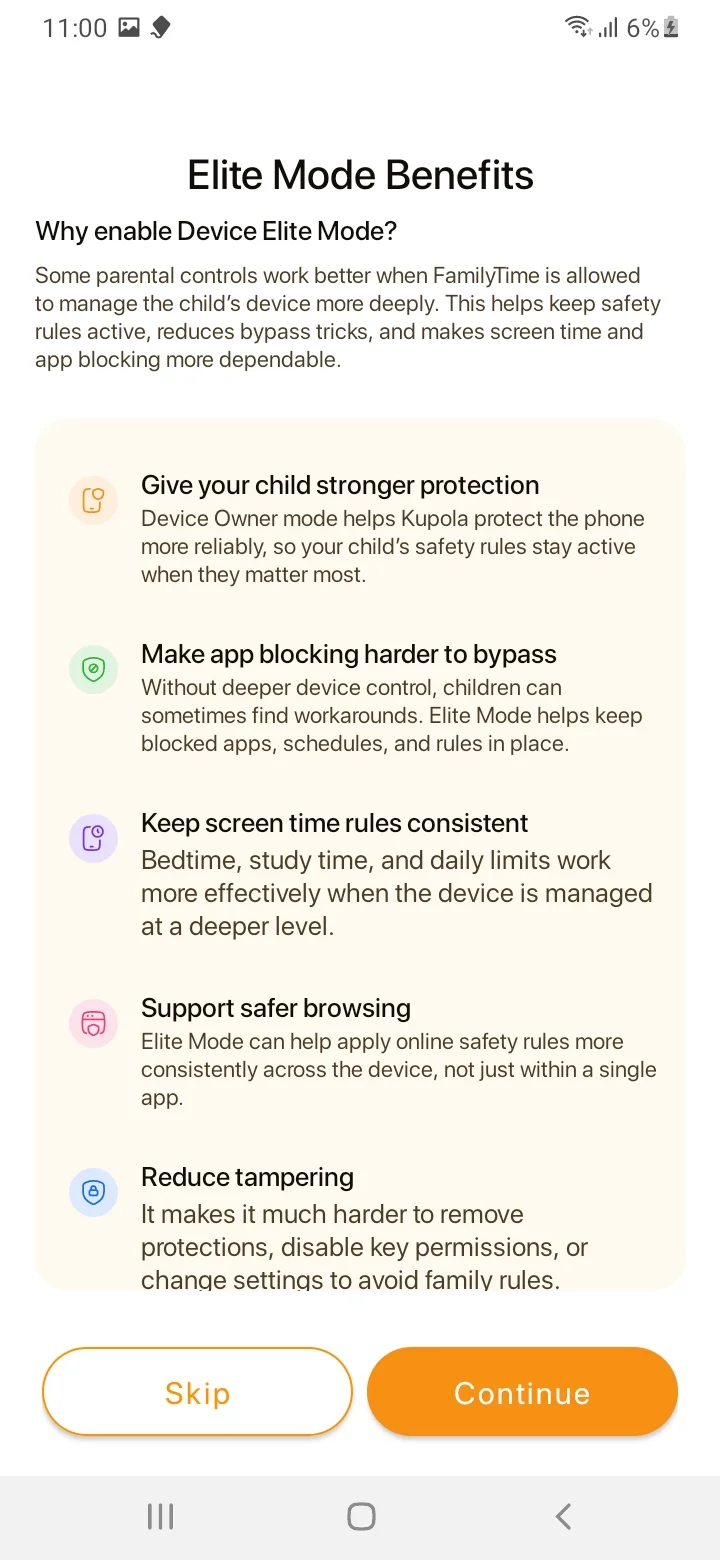
You can read the benefits of Elite Mode by scrolling. To continue, tap the "Continue" button.
Tap "Continue" to Enable Developer Mode.
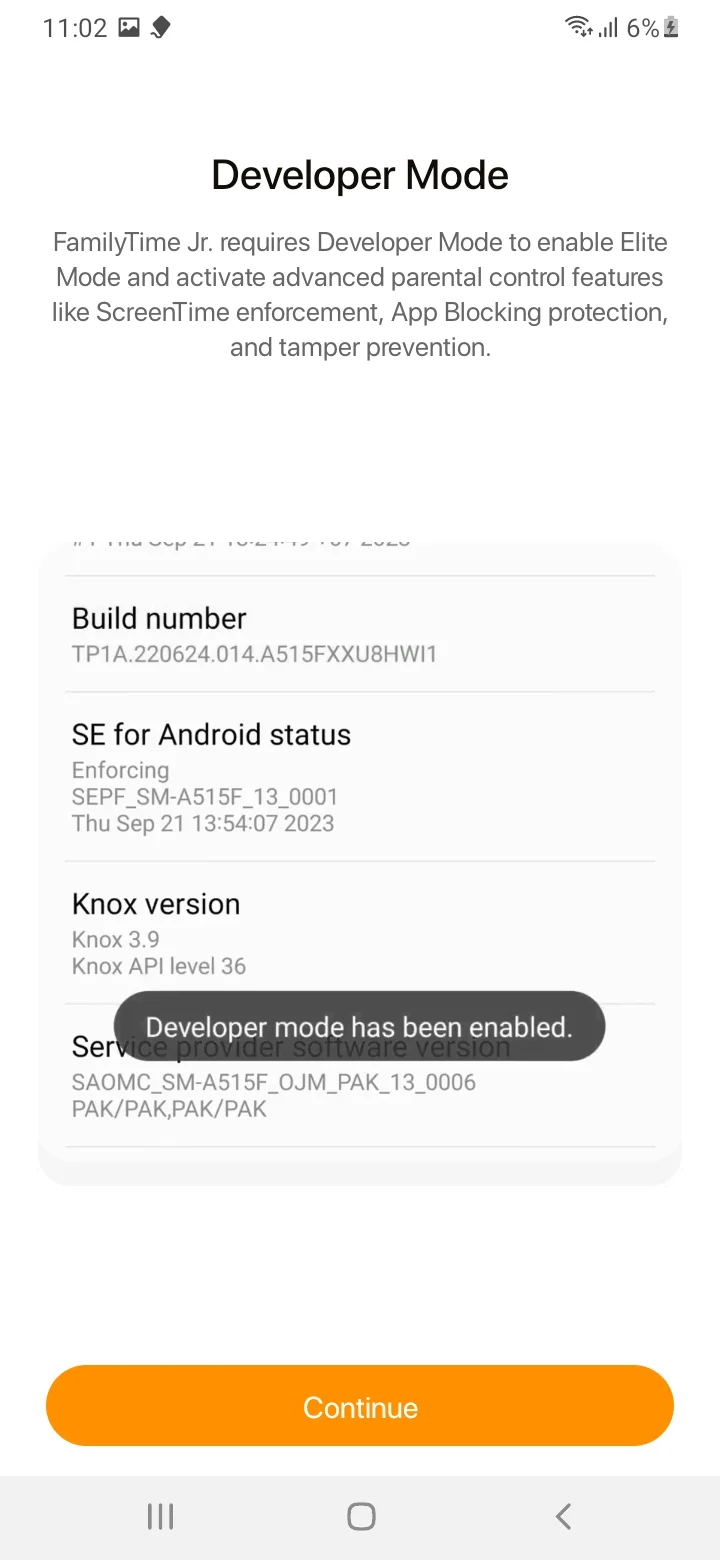
Tap on "Software Information".
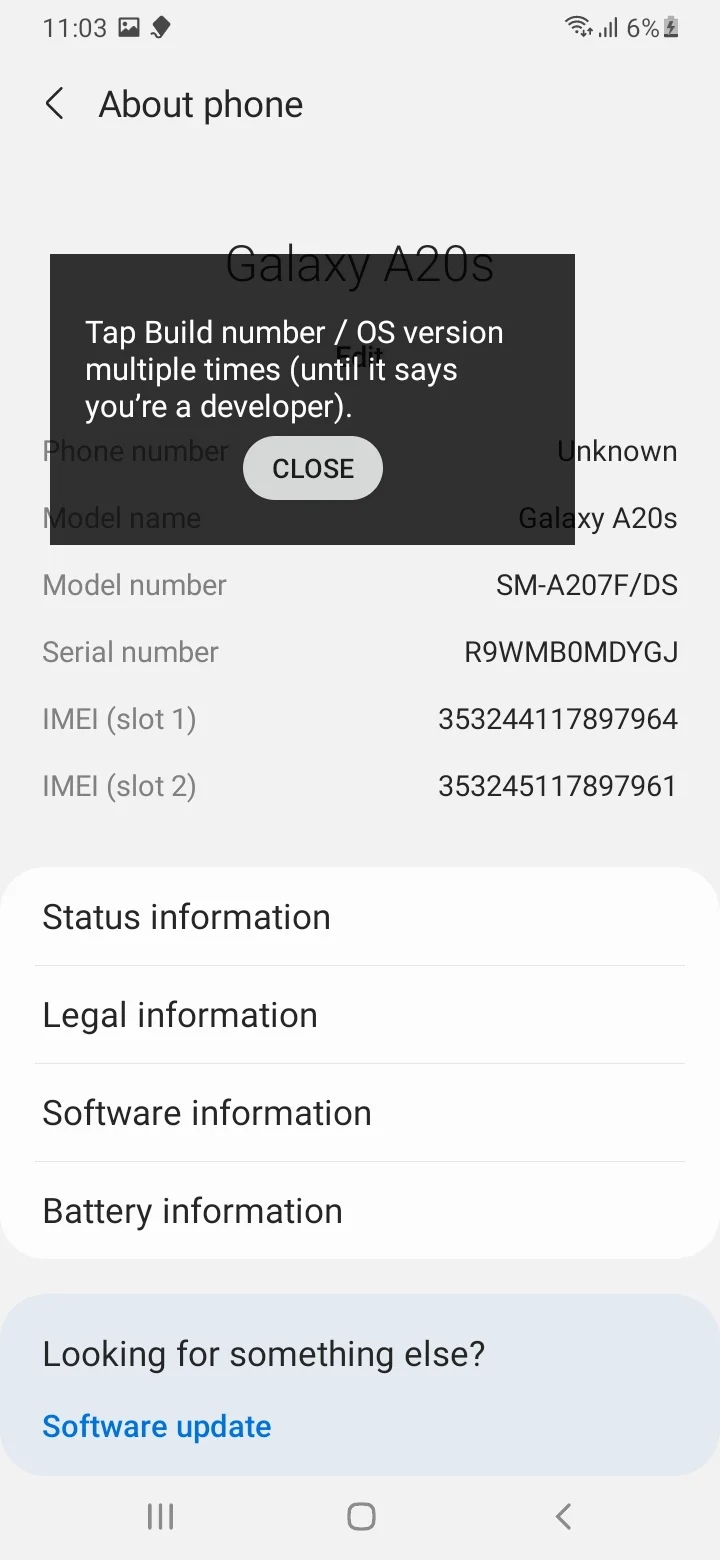
Multiple taps on "Build Number".
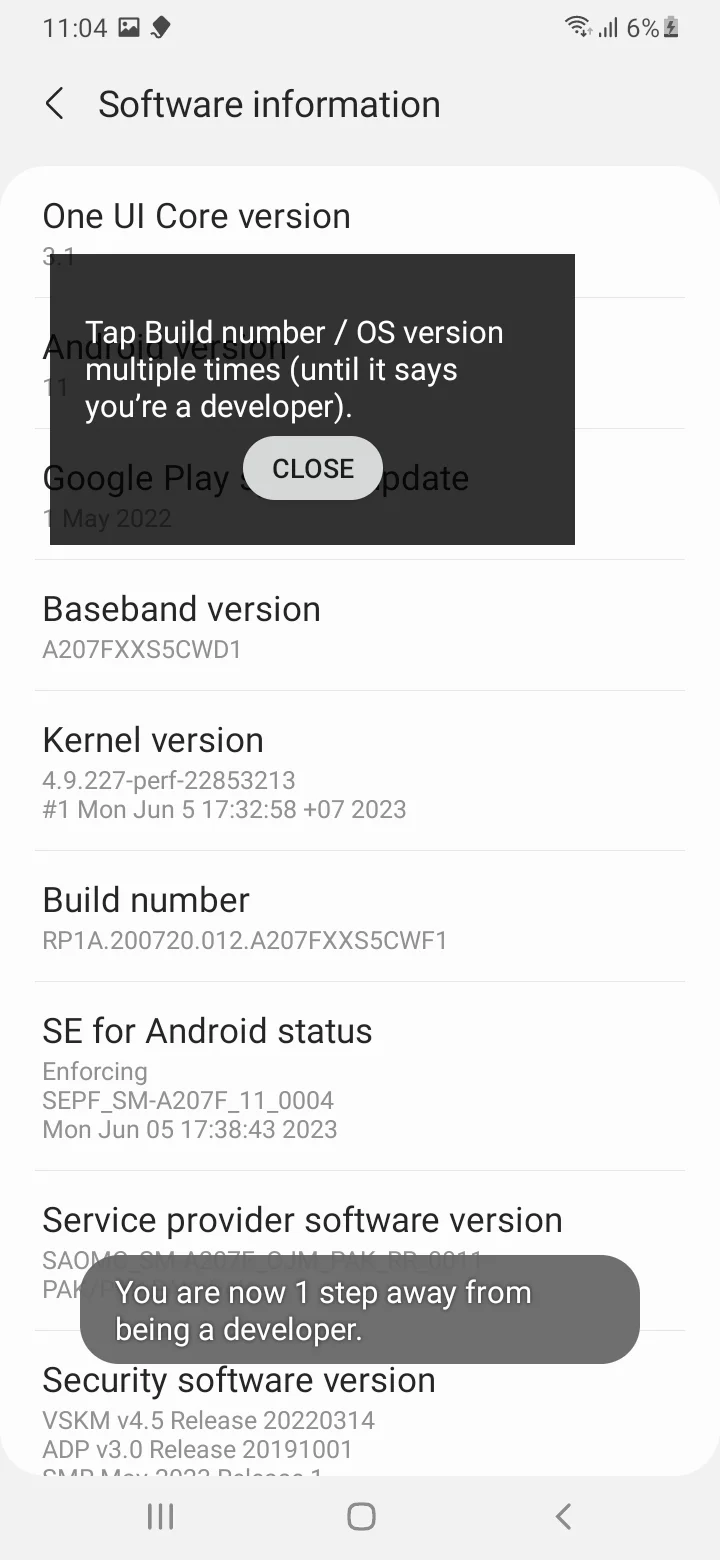
Developer Mode is Enabled.
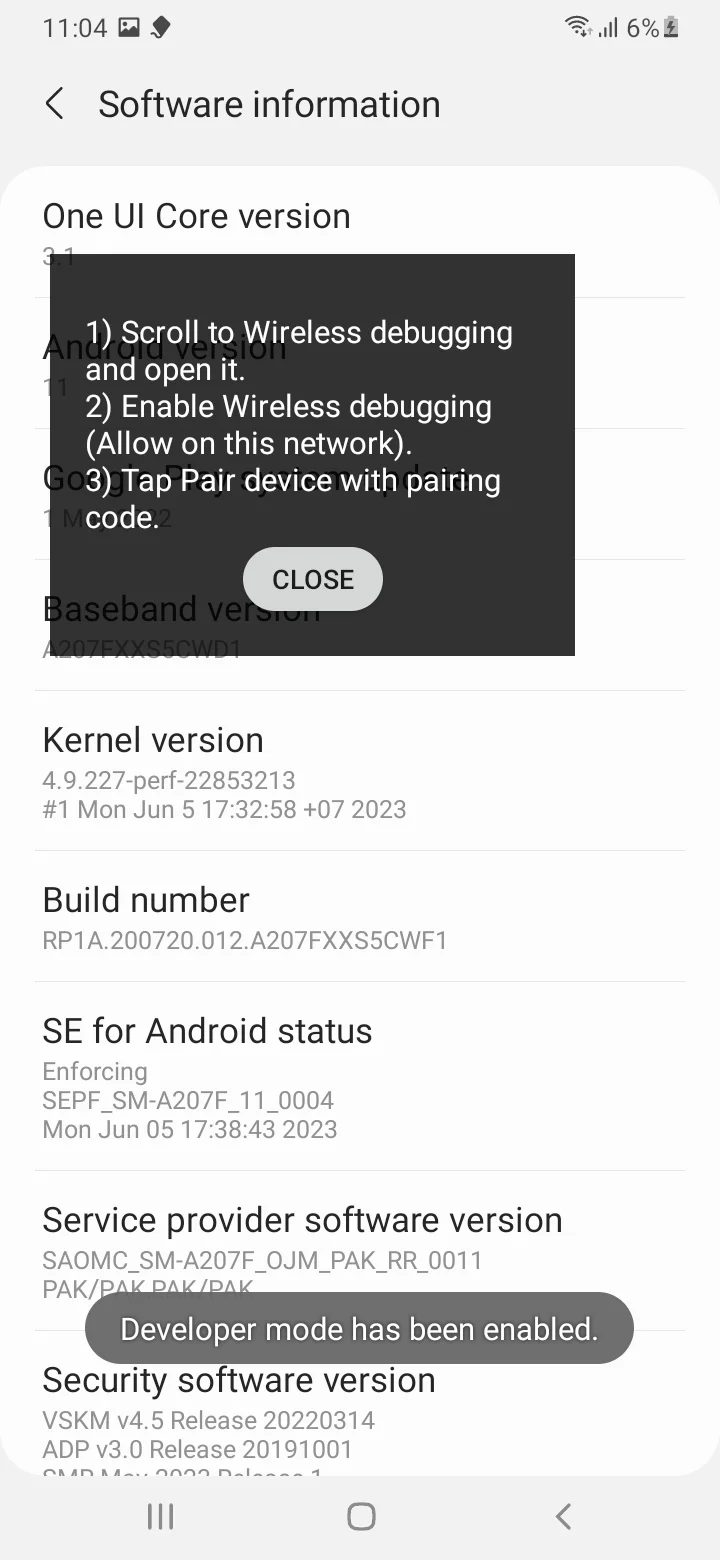
Tap "Continue" to enable wireless debugging.
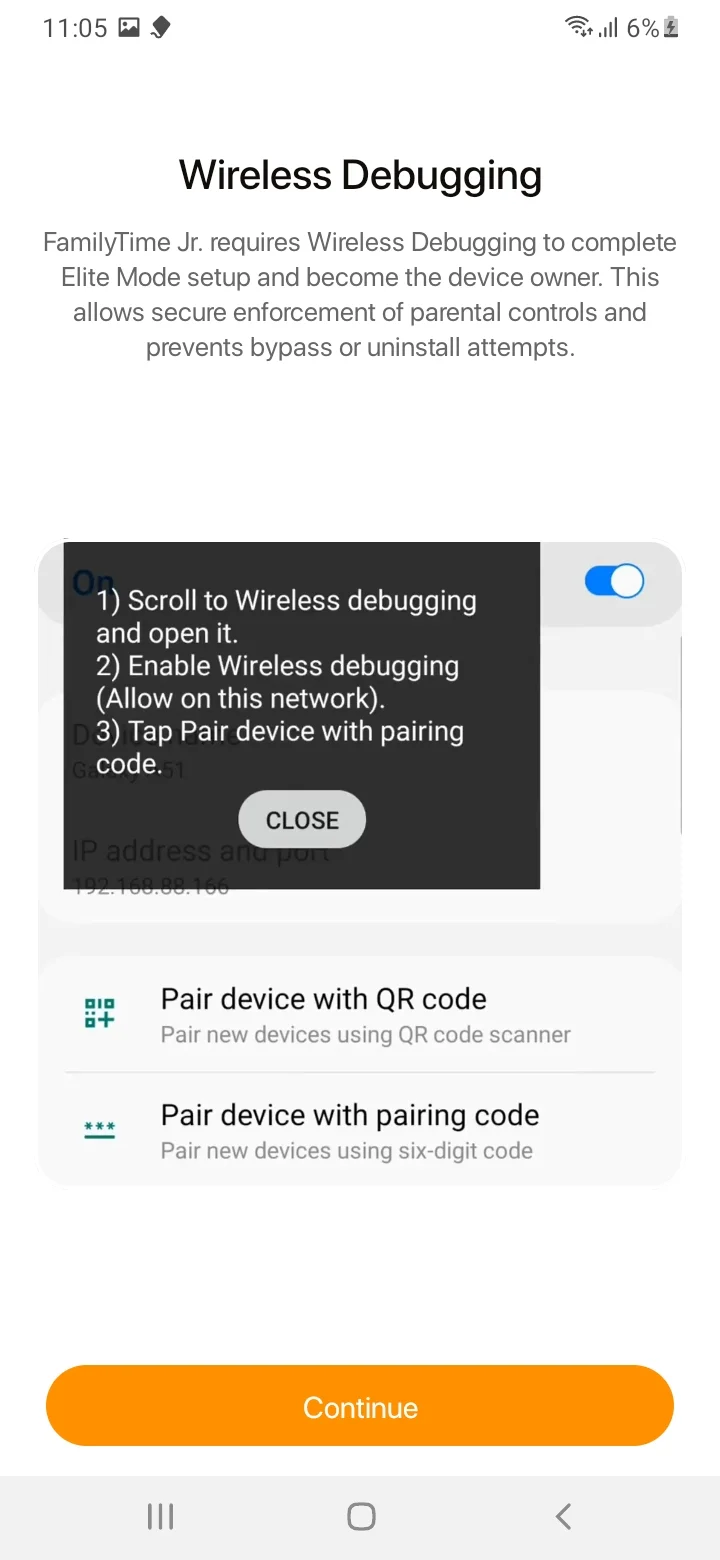
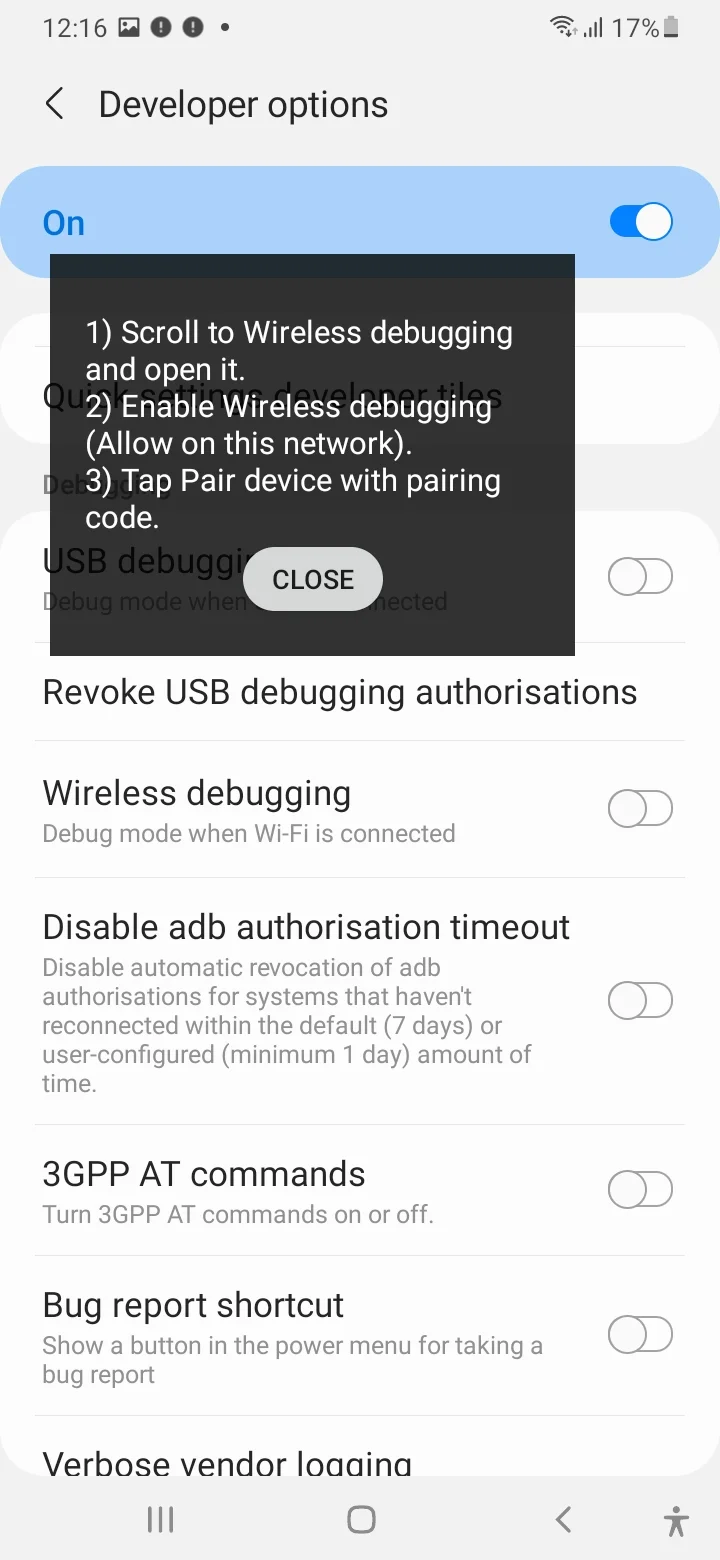
Scroll down and "Turn On" the wireless debugging toggle.
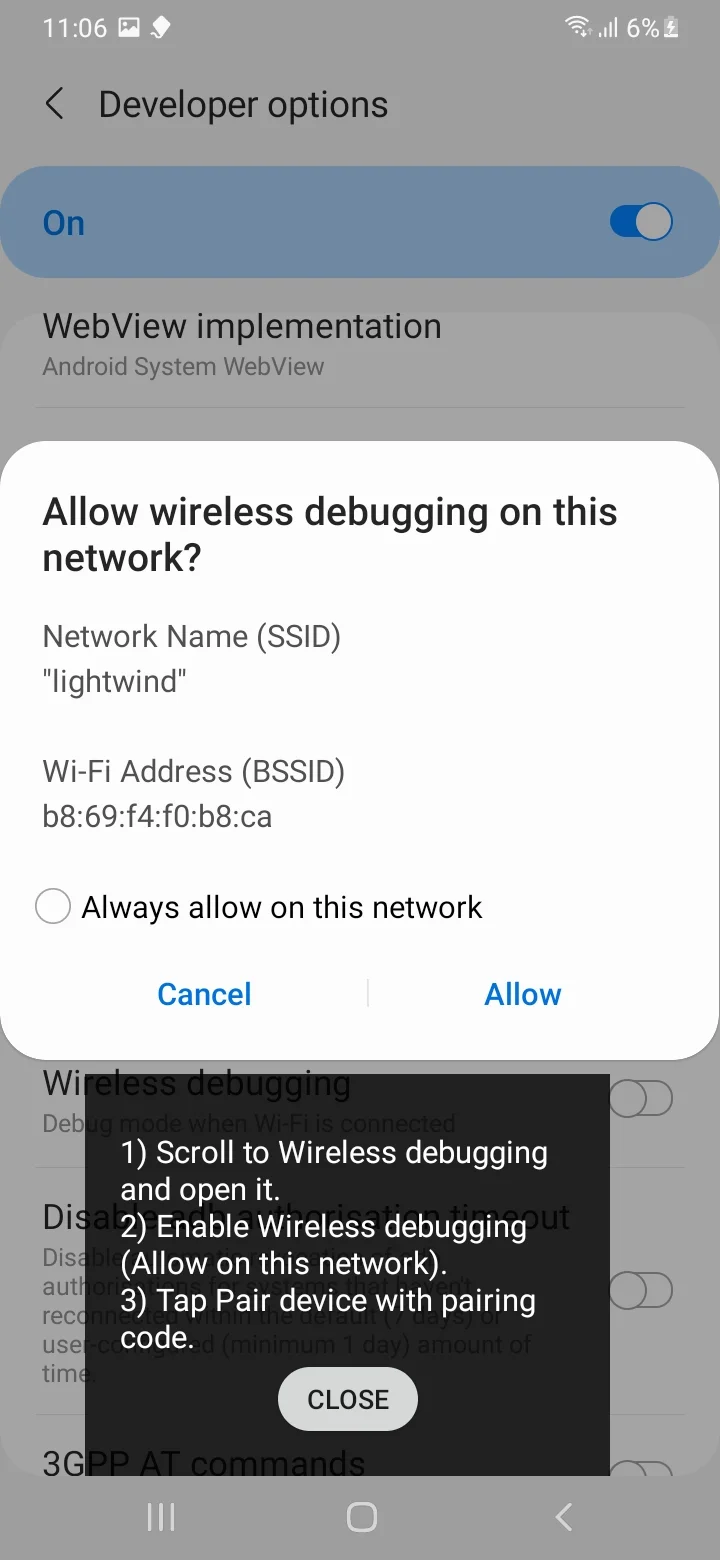
Tap "Allow" to continue.
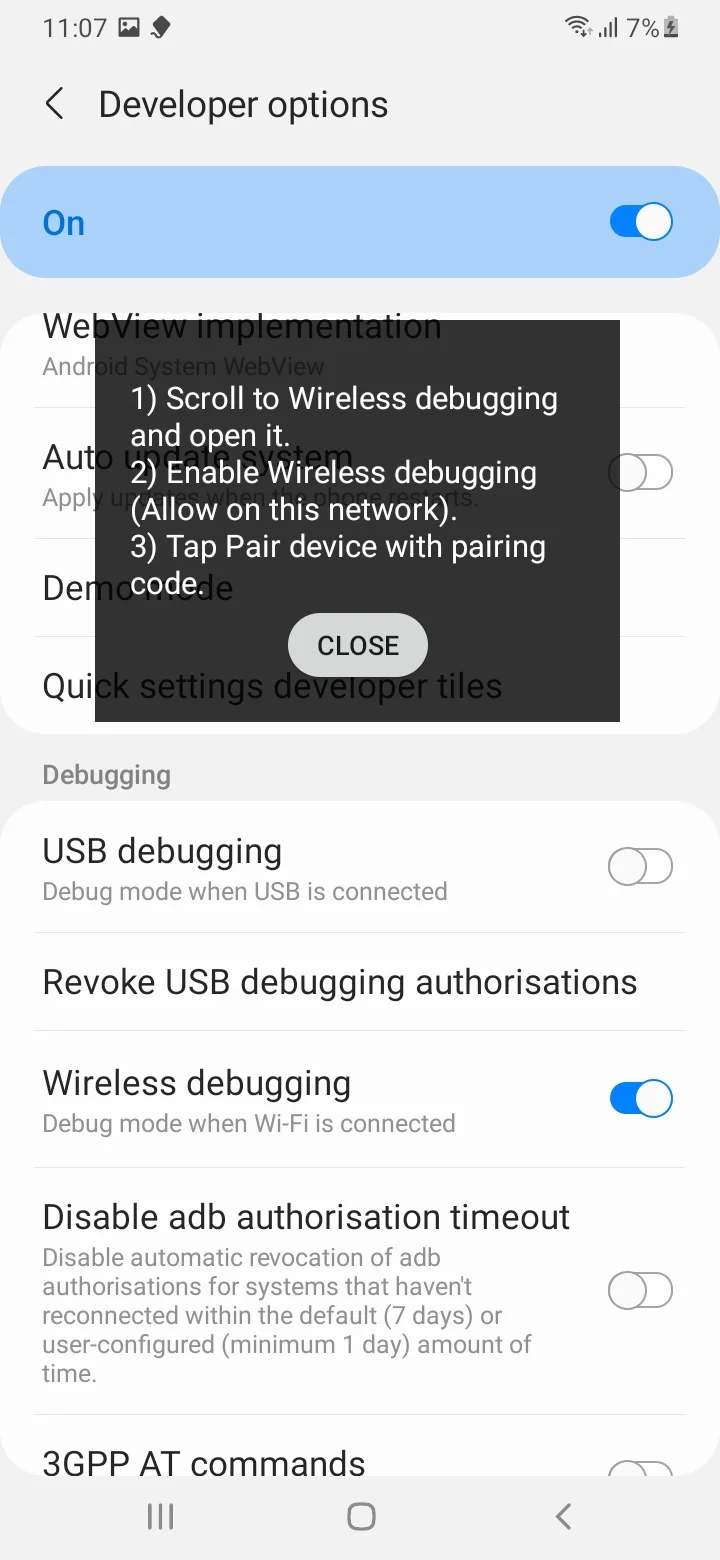
Tap on "Wireless Debugging".
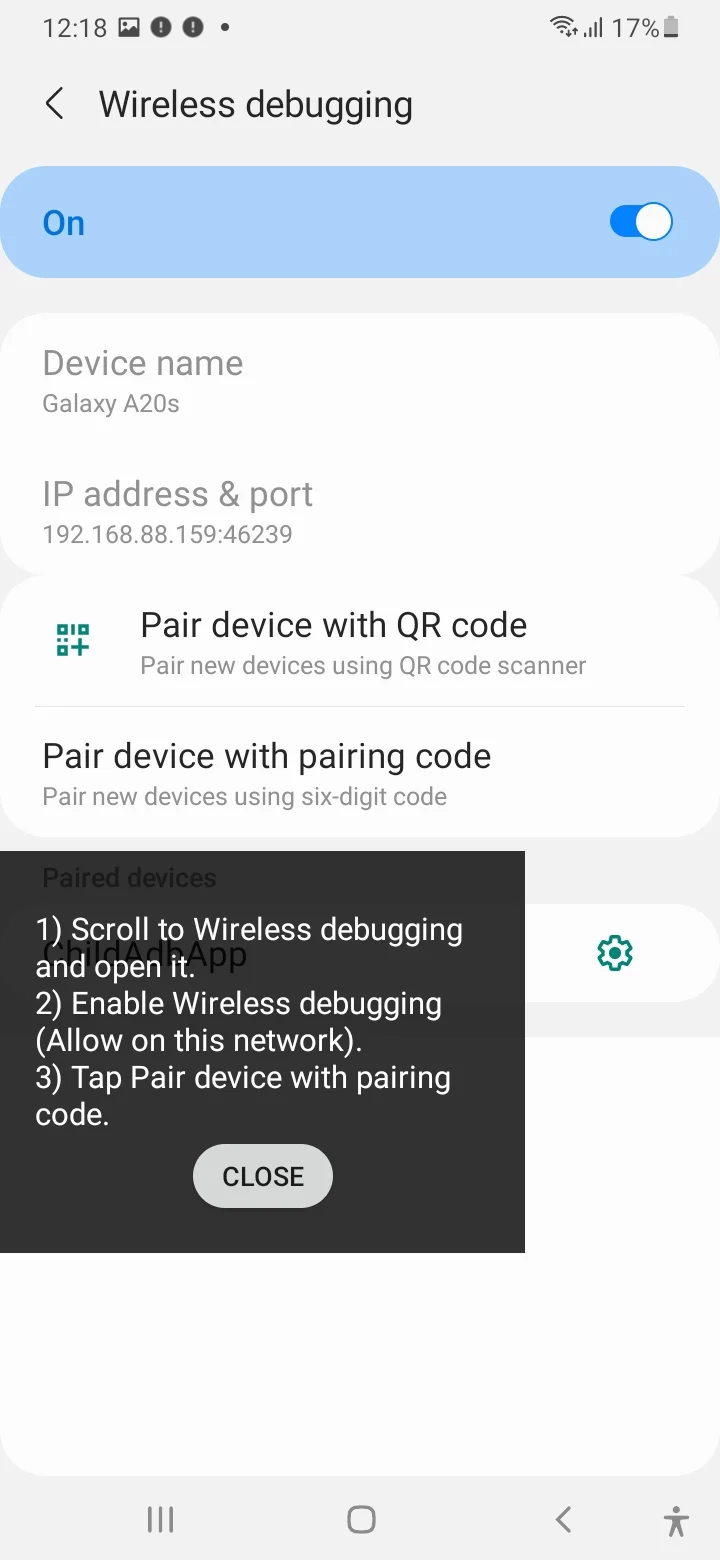
Tap on "Pair device with pairing code".
It will take time to set up the device. Please wait for a few seconds.
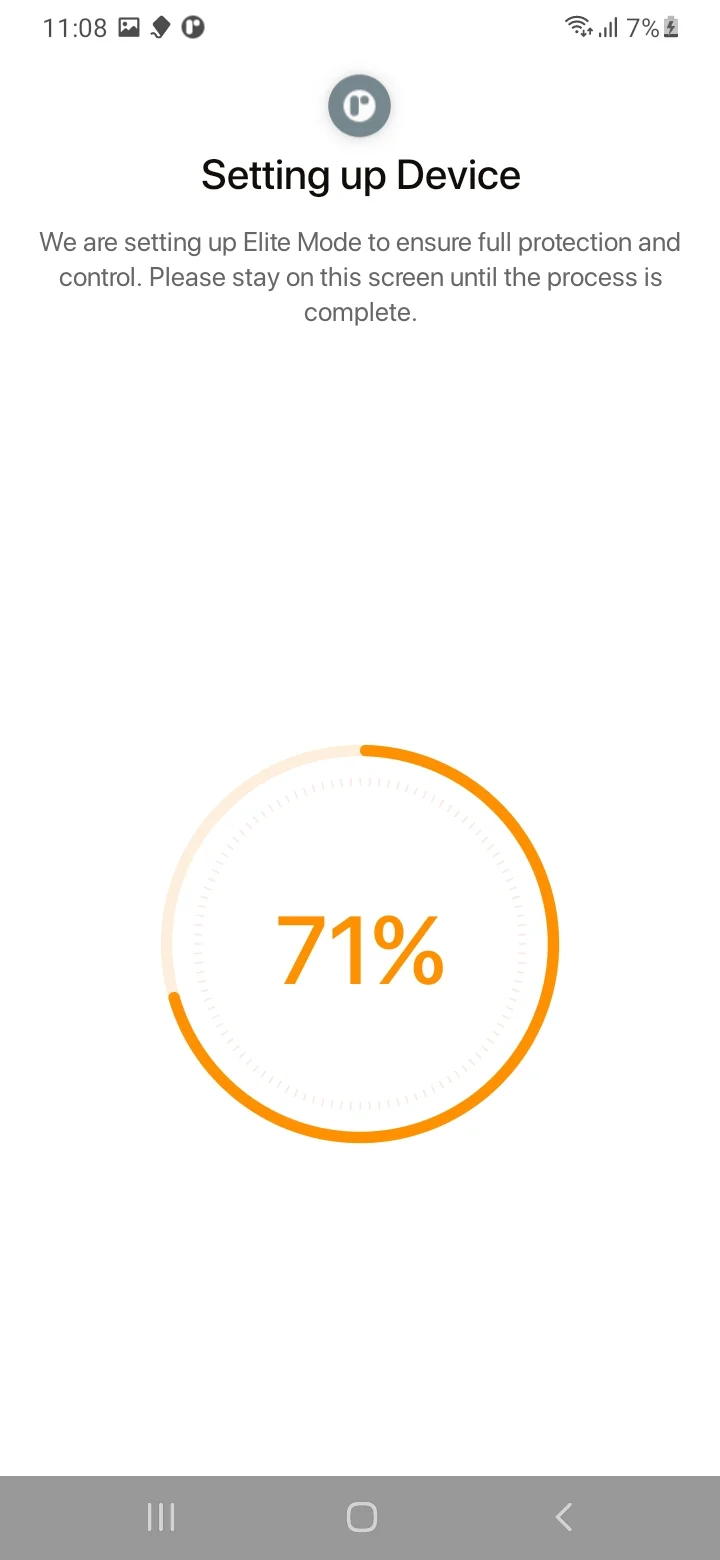
Elite mode is activated.
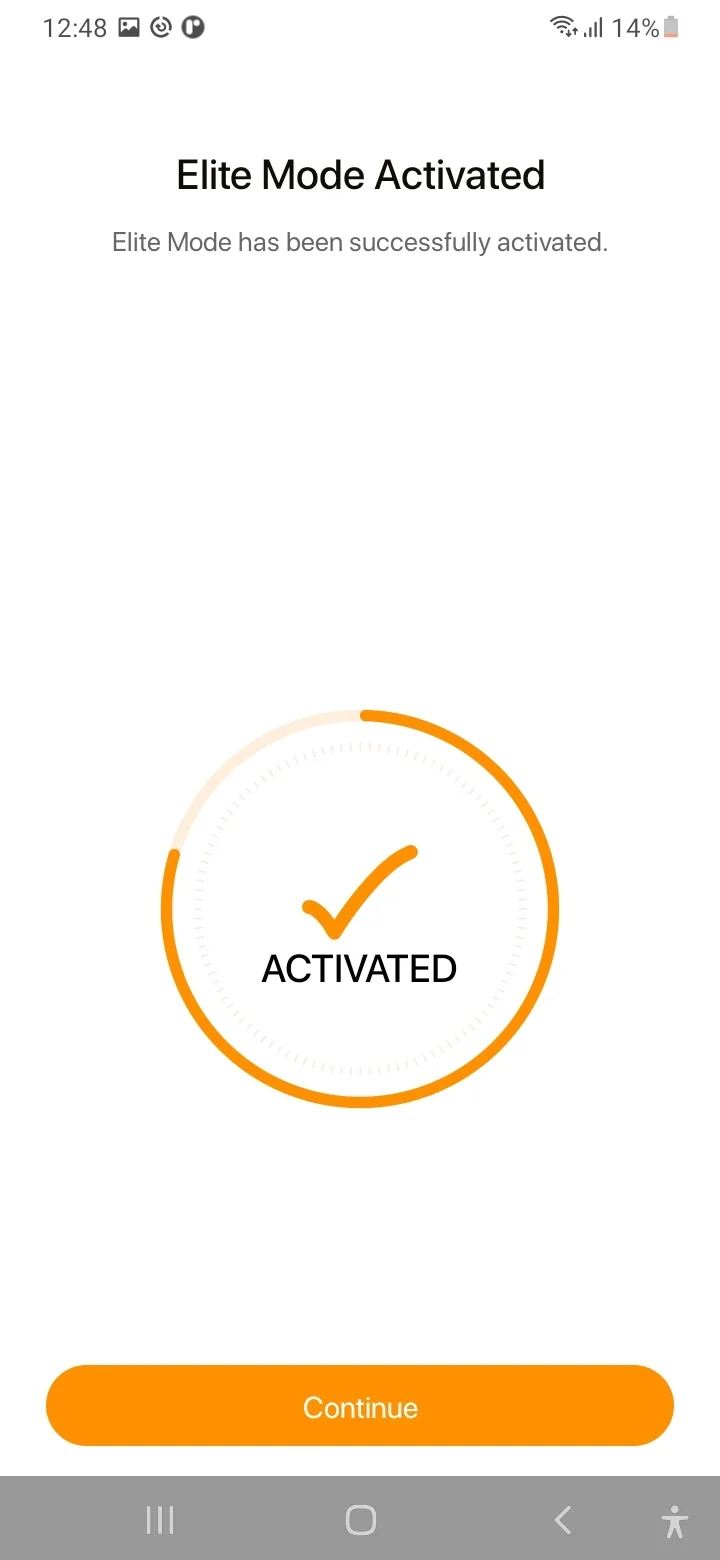
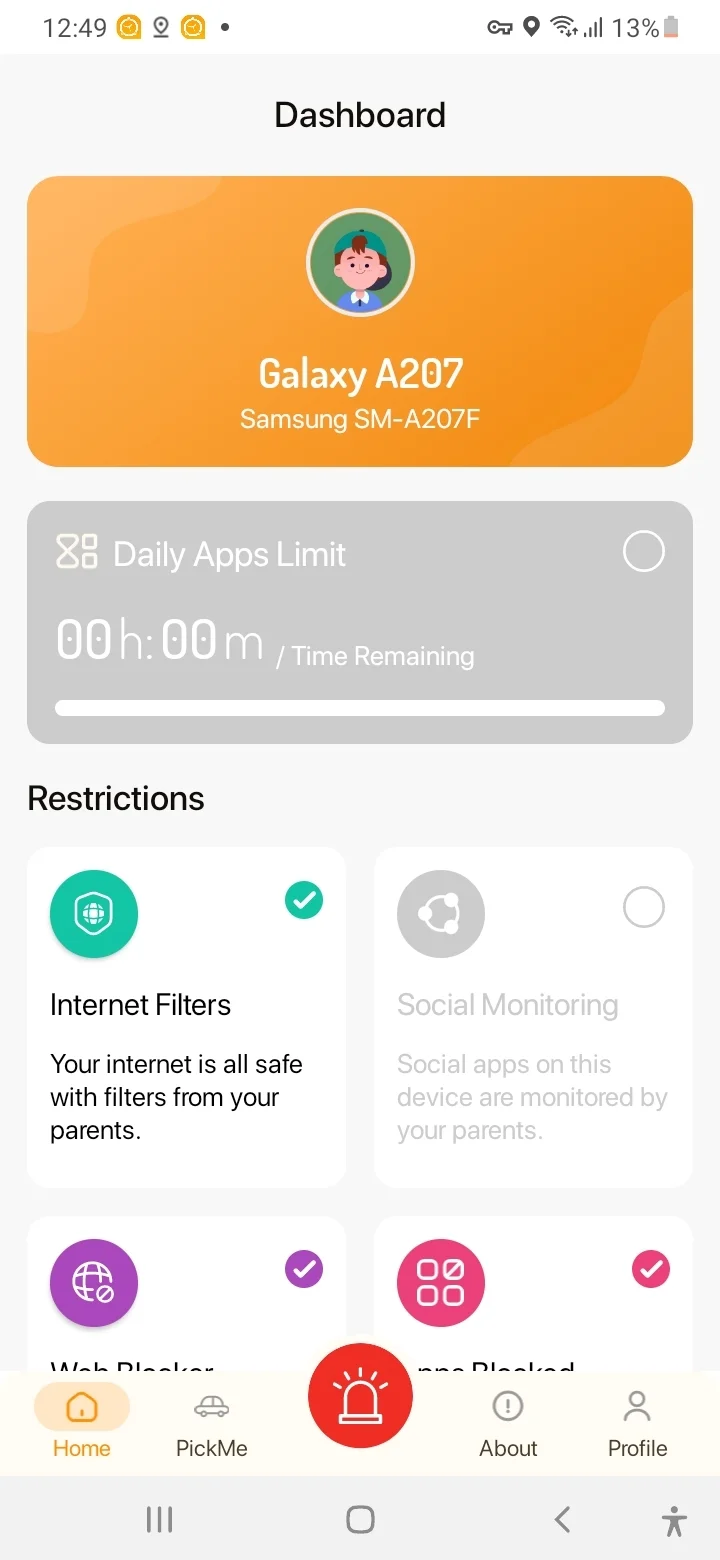
Congratulations! FamilyTime Jr. Elite is Successfuly Activated on your Kids Device..

Need an Advice?
Not sure about something or want to have a quick word with one of our experts? No worries, our parenting experts are here for you 24/7! Click the button below and get to talk to our Expert right away!