

What are Android permissions, and why does FamilyTime – Child App need them?
Here are the permissions FamilyTime Jr. App will ask for before installing on Android devices.
FamilyTime can access:
- Device Information
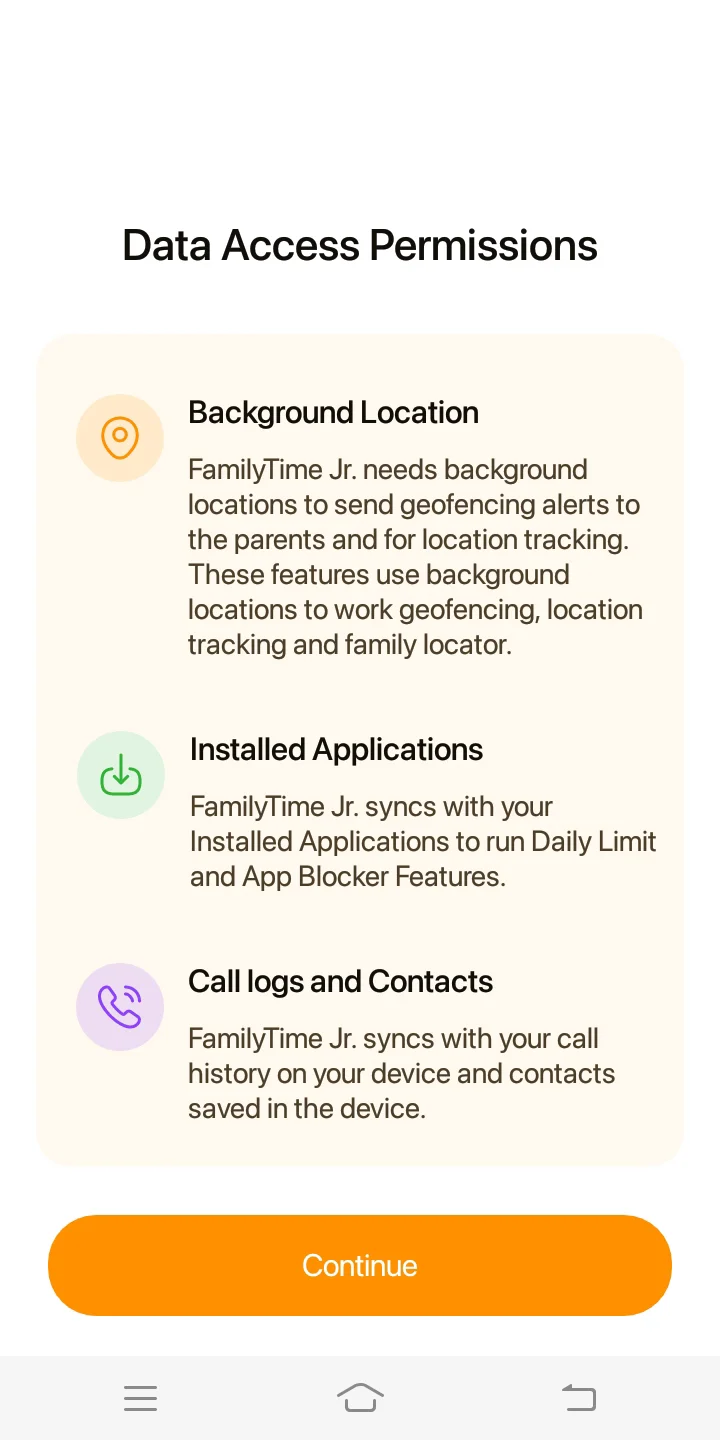
- Call Logs and Contacts
- Location History
- Text Messages
- USB Storage
- Usage Stats
- Overlay Permission
- Run at Startup
- VPN Permissions
- Run at background
- Accessibility Permission
Device Information
FamilyTime uses Internet, Network State, Wi-Fi, and Phone State Information/ Permission to show parents' child's data.
These permissions are used for server communication and show parents' children \ 's device information.
Call logs and Contacts
FamilyTime syncs with the child's call history on your device and contacts are saved.
FamilyTime will pull all contacts and phone call history when you first sign into the app. Suppose any contact is deleted from the FamilyTime app residing on this phone. In that case, it will not get deleted from our servers. Any contact added or subsequent calls will be uploaded to the server after every 30 minutes. Every new call or contact will get logged if it's not deleted within 5 minutes of being added.
Location History
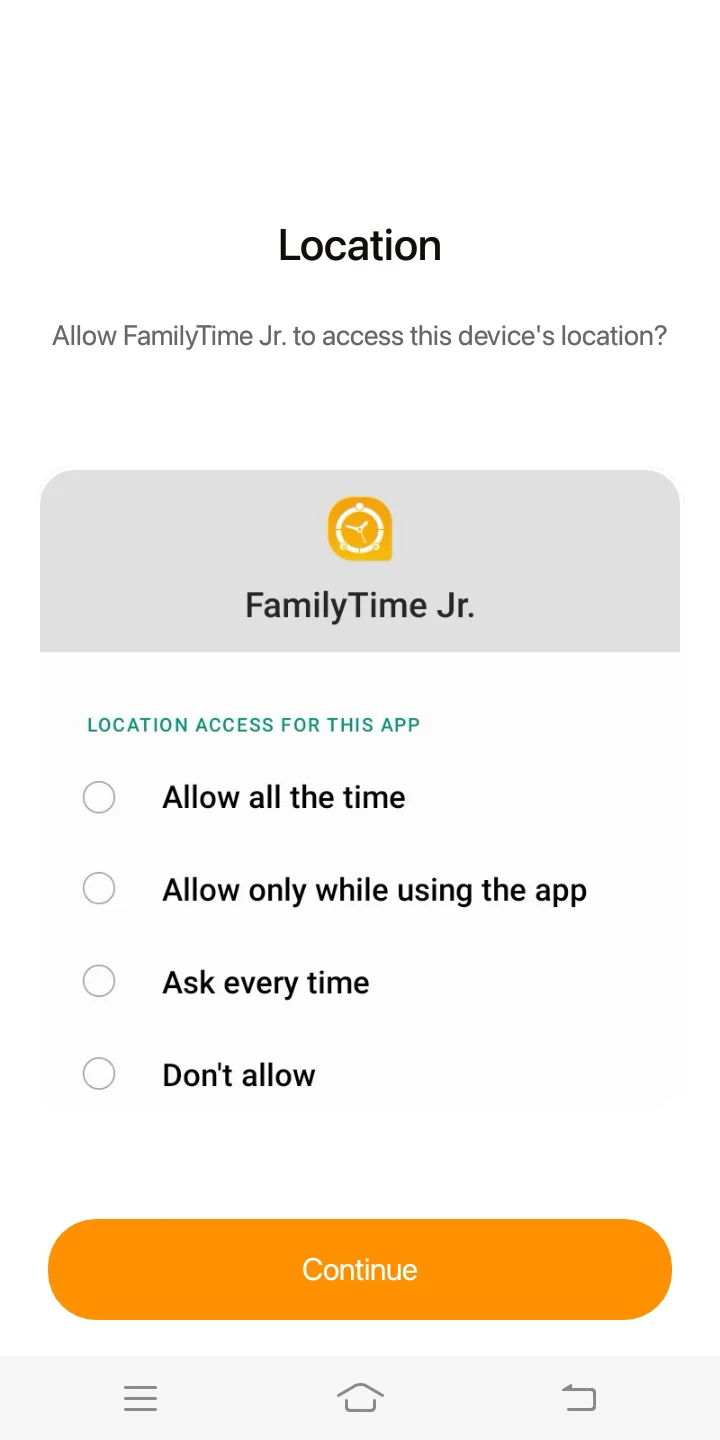
FamilyTime requires access to the device's location as the app periodically stores the child's location on the server to let the Parent Dashboard access it.
FamilyTime will log two types of location information – approximate location (network-based) and precise location (GPS and network-based).
When location permission is activated for a child's device, FamilyTime can access and log the location even when the device is inactive. To give precise locations, FamilyTime recognizes activity recognition on the device to check if you are idle, walking, or driving.
Text Messages
FamilyTime syncs with SMS history on the child's device and any SMS received in the future after the app's activation.
FamilyTime Jr. will record and track all the SMSs on the child's device after activation. The permission lets the app seamlessly track the messages on the device. Any message deleted from the child's device will not be deleted from FamilyTime's server. However, all the new SMSs coming to the device will be uploaded to the server immediately when there is an active Wi-Fi connection. On mobile data, it will update the data every 30 minutes.
USB Storage
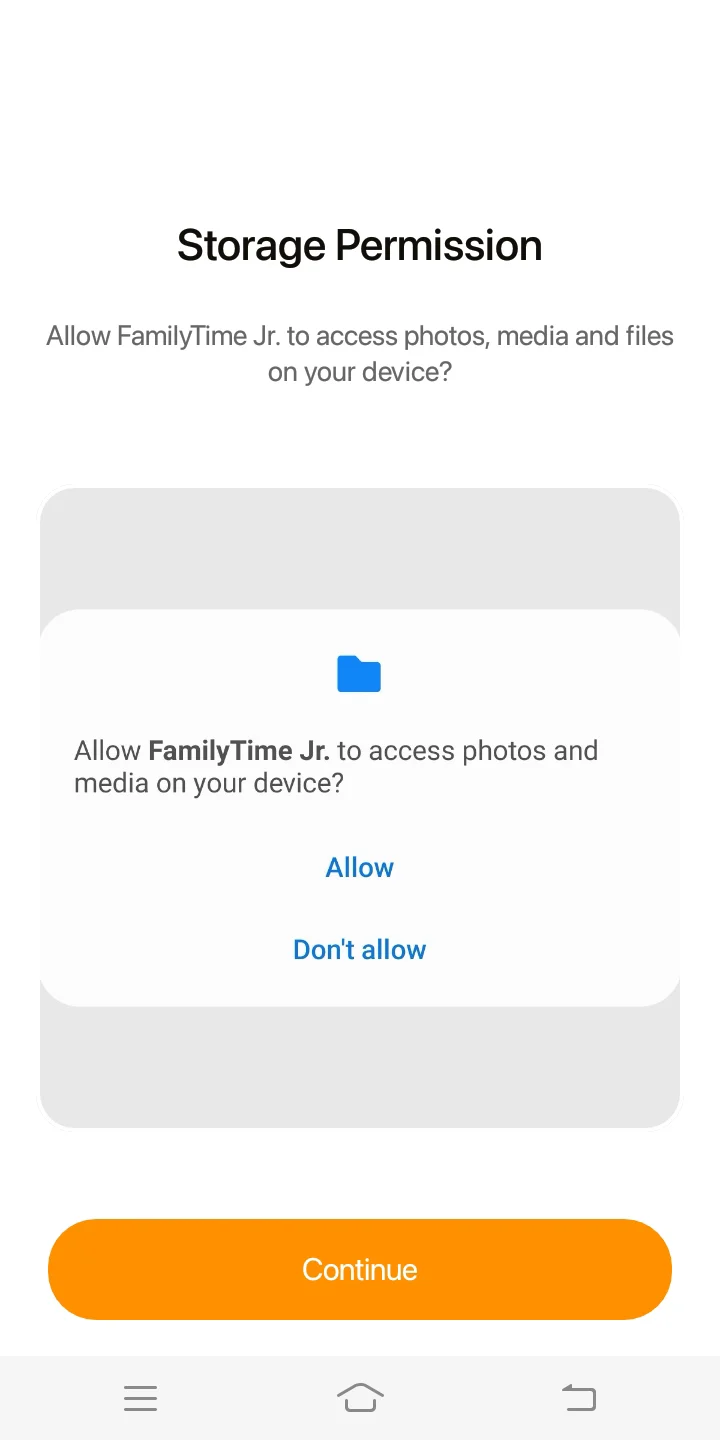
FamilyTime will use some of the internal memory on the child's device to perform its functions properly.
Although the app saves all data on the cloud, it still takes up some space on the device's internal memory. FamilyTime does not cause a dent in the device's memory.
Usage Stats
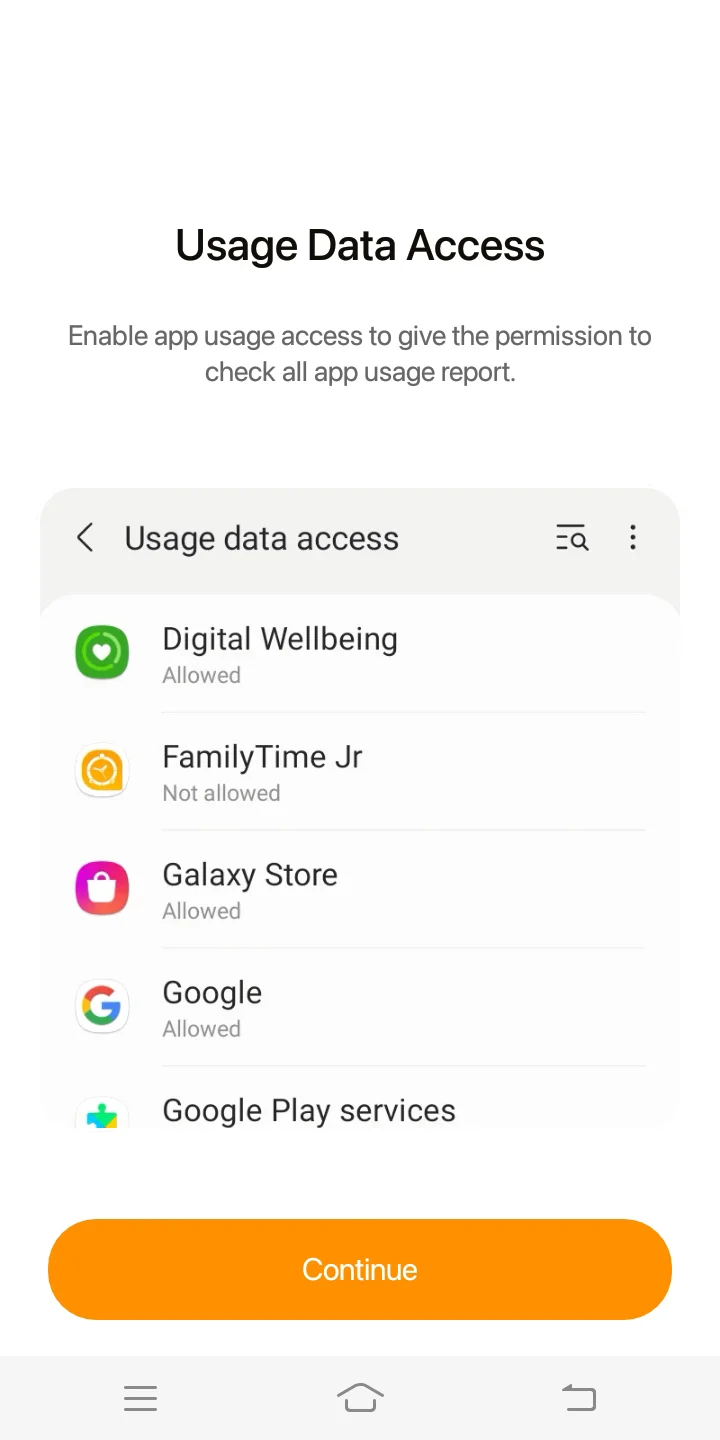
The FamilyTime Jr. app accesses the device's usage stats to ensure the child cannot break DailyLimit, LimitScreenTime, or App Blocker features. Also, it is essential to provide real-time and accurate AppUsage reports to parents for monitoring & management.
FamilyTime uses package usage stats and kills background processes to ensure App usage, App blocker, Daily limit, and Limit Screen Time features work properly.

Overlay Permission
FamilyTime makes sure that the child is unable to break the FamilyPause feature.
FamilyTime uses overlay permission, package usage stats, and kill background processes to ensure App usage, Appblocker, Daily limit, and Limit Screen Time features work properly.
Run at Startup
Every time the phone starts up, FamilyTime starts running automatically.
On each startup, FamilyTime searches for any new activity and uploads it after every 30 minutes.
Run at background
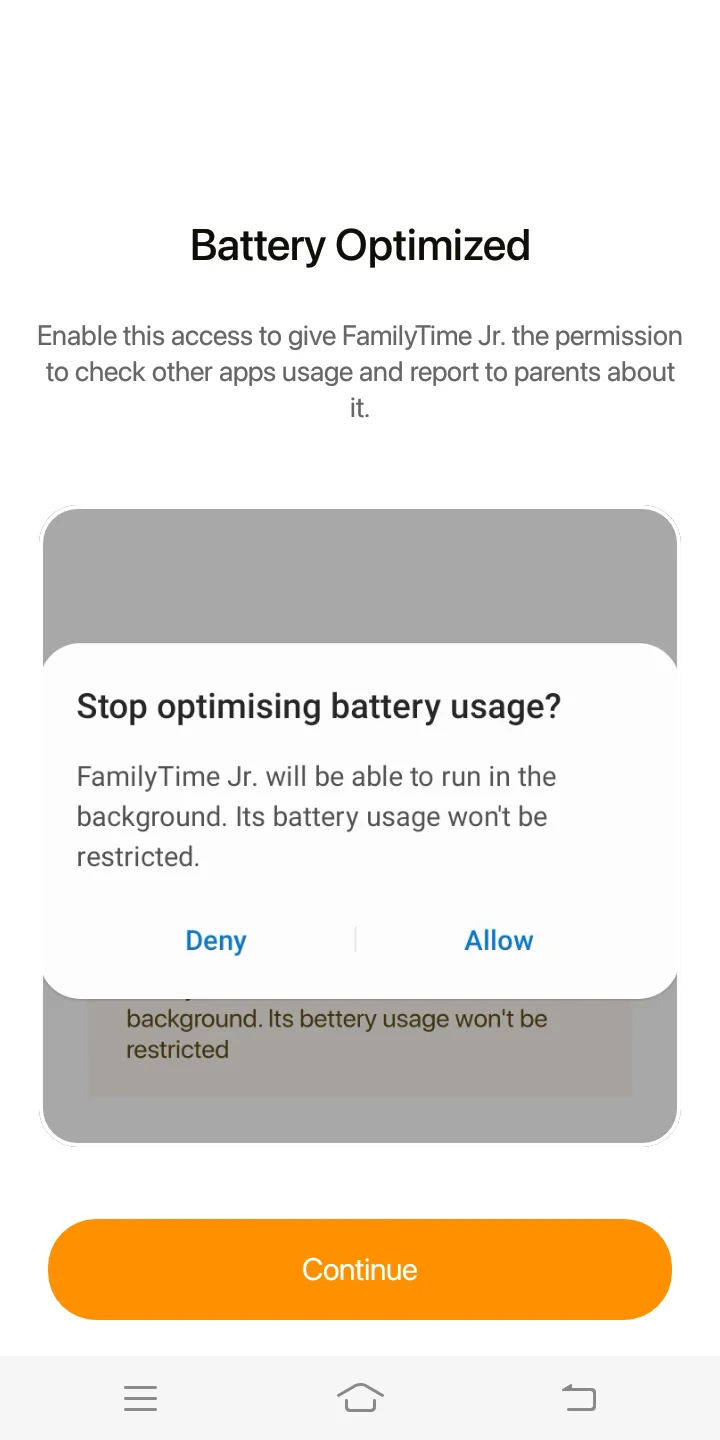
Even if the phone is idle or in sleep mode, FamilyTime keeps running in the background. The FamilyTime icon will always stay in the notification bar, which indicates background services are running.
Battery optimization and wake lock permissions are taken to keep FamilyTime running while the device screen is off.
Accessibility Permission
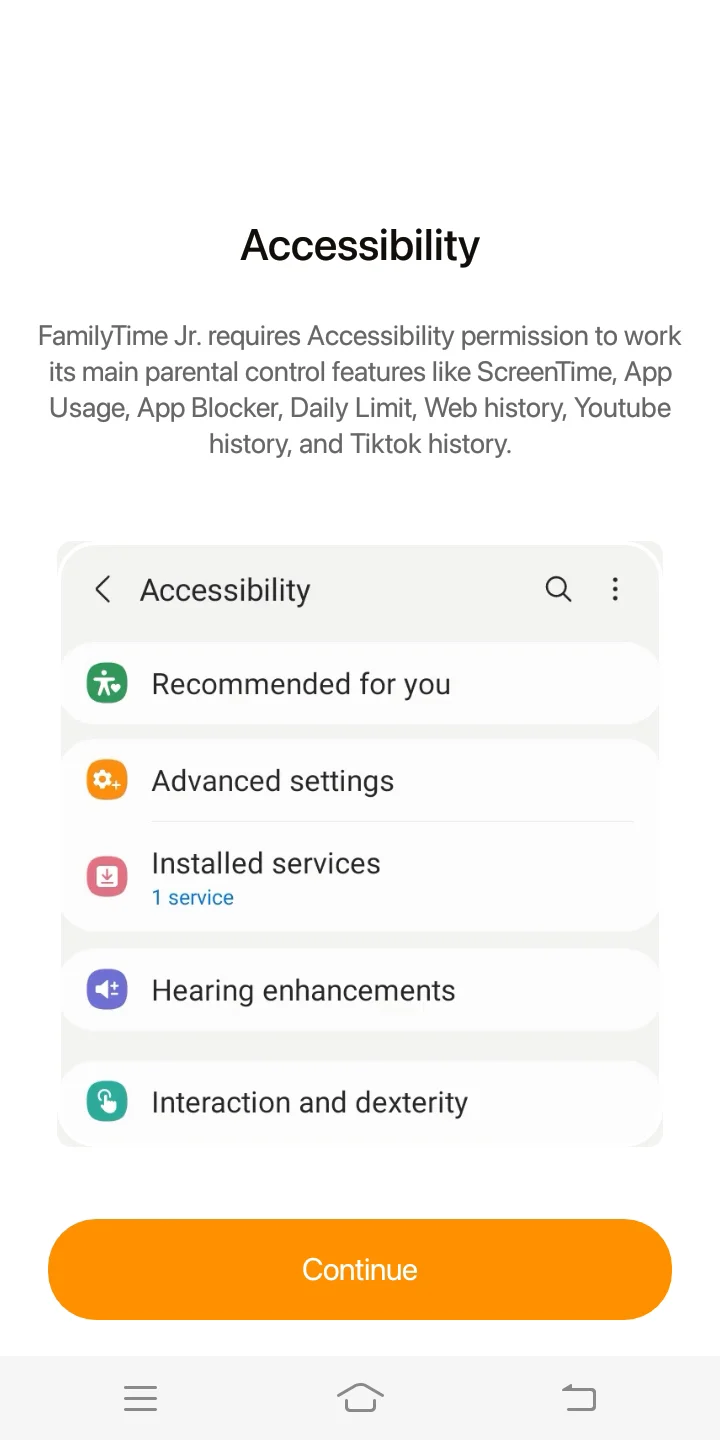
If Accessibility is turned ON, FamilyTime can perform its AppBlocker, Daily Limit, and Limit Screen Time features properly. It will also prevent accidental uninstallation to ensure responsible use of this device and its apps. If Accessibility is turned OFF, features like AppBlocker, Daily Limit, and Limit Screen Time won't work, and the child can easily uninstall this application.

Need an Advice?
Not sure about something or want to have a quick word with one of our experts? No worries, our parenting experts are here for you 24/7! Click the button below and get to talk to our Expert right away!