

How to Setup / Use App Blocker on Android Devices?
Follow these very easy step-by-step instructions to set up App Blocker on your child's Android smartphone or tablet:
Open your FamilyTime parent dashboard.
Select the child profile to set up App Blocker and tap Settings.
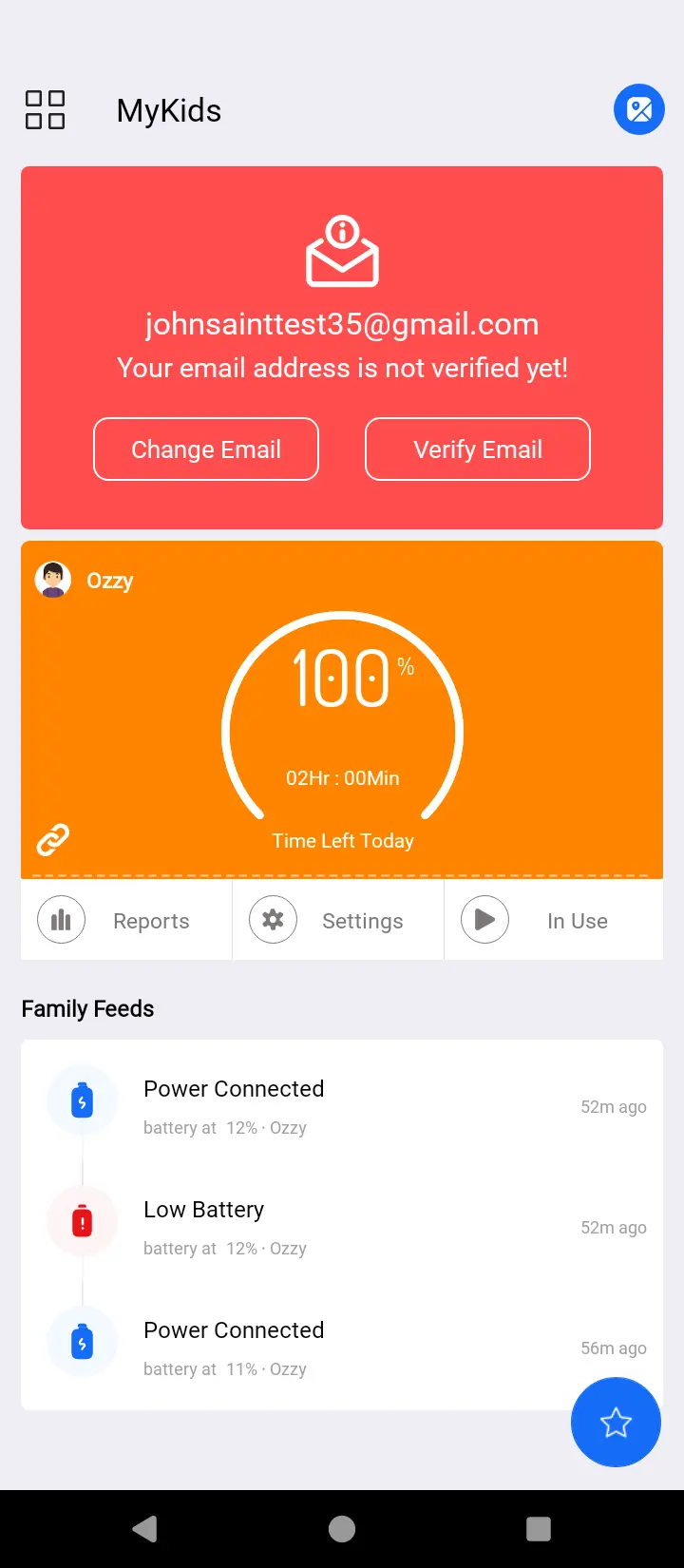
From the list, select "App Blocker."

App Blocker feature controls window opens on screen.
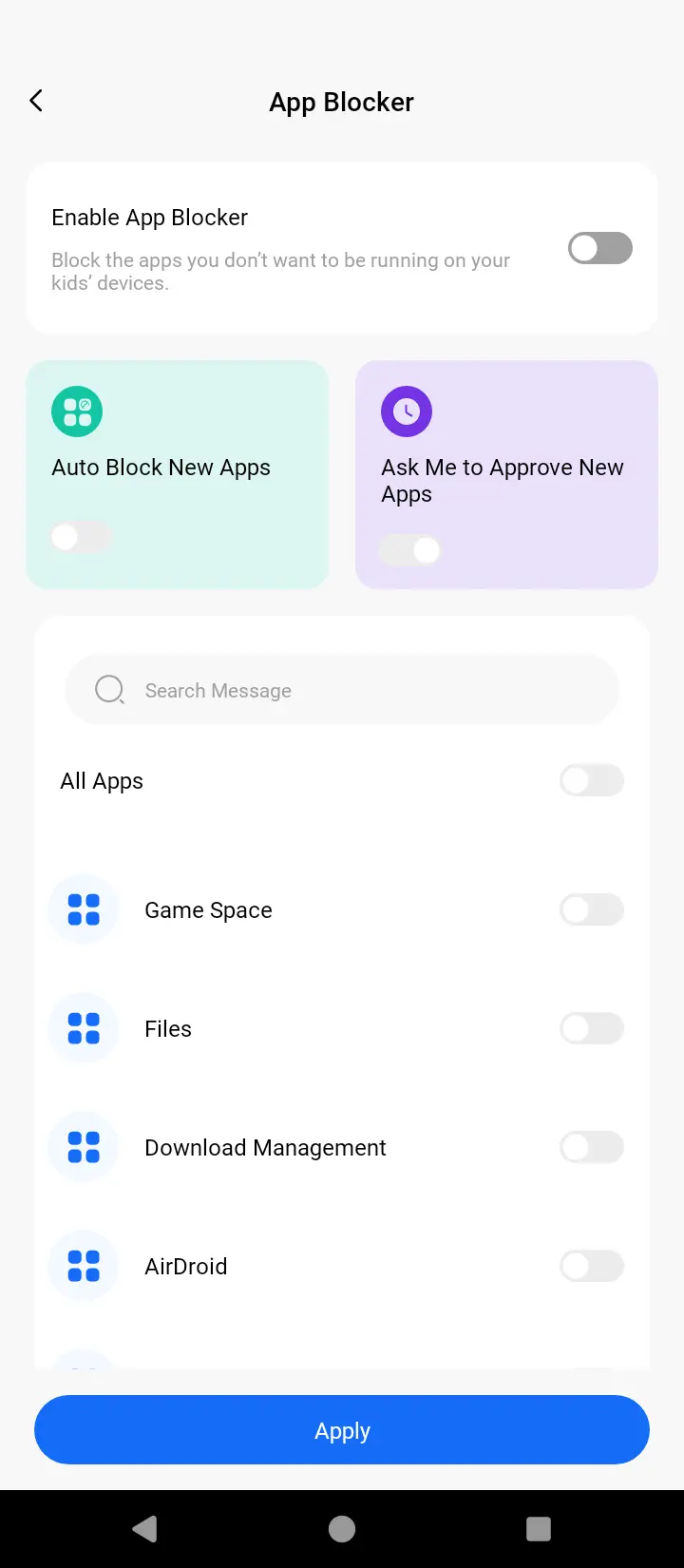
Toggle on the "Enable App Blocker."
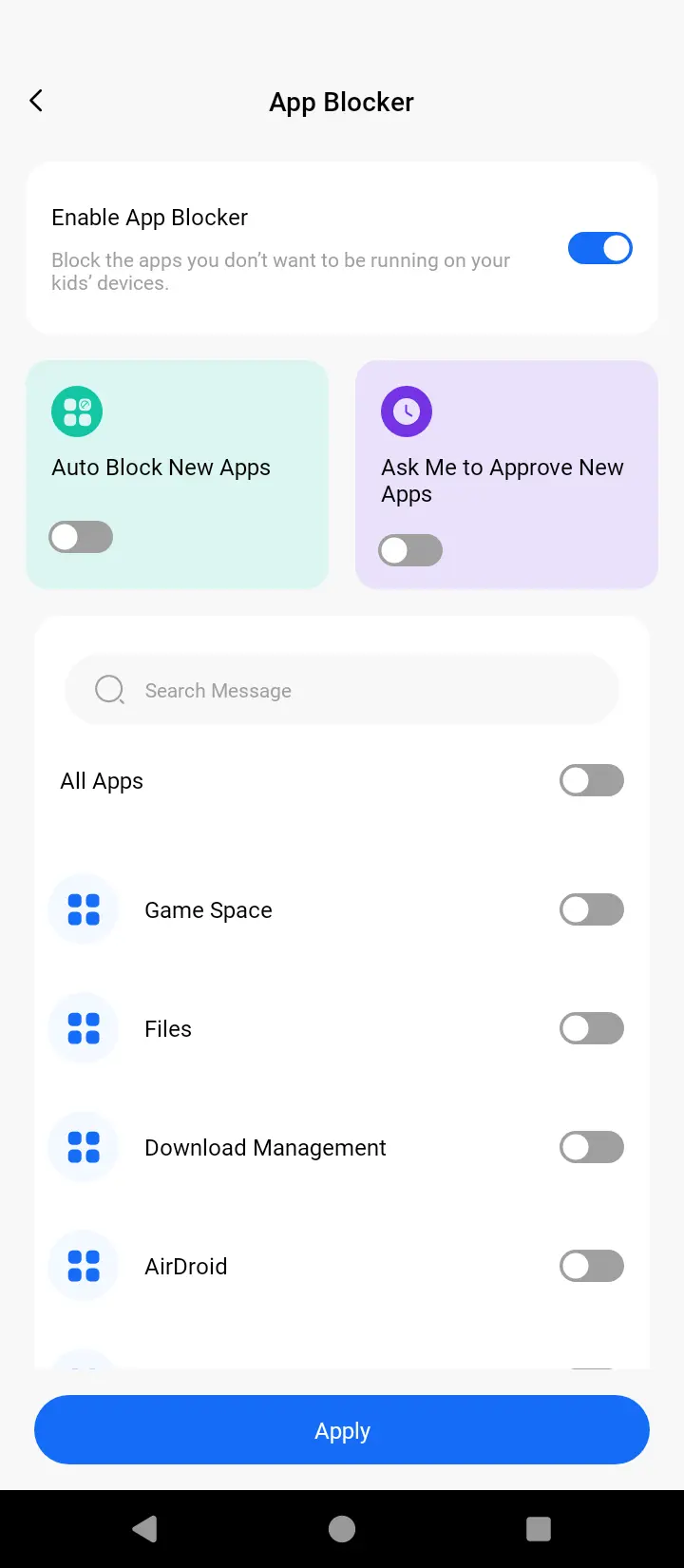
Select the apps you want to block from the app shown in the list below.

Tap "Apply" to activate the blocker on selected apps.

It's done! Now, your child will not be able to access these locked apps.

Whenever your child installs a new app, you will get a notification to either accept or reject it immediately.
How Does App Blocker Help?
You can use this intuitive feature in various ways to make your parenting easier and more effective. Here are some of the ways App Blocker can help you:
- Blocks distracting apps and games and gives children time to unplug.
- It helps children to overcome their gaming addiction.
- Control which apps their children can use, blocking age-inappropriate ones.
- It helps to reduce social media obsession among teens.
- Provides a healthy alternative in the form of physical and outdoor activity.
- Keep kids away from accessing settings or controls on the device to make any changes in parental controls.
Best Practices – Tips to Using App Blocker
Android App Blocker is an adaptable feature you can use as it fits your needs. Here are some useful tips to make the most of this useful feature:
- Screen all apps on kid's Android devices and see if there are any apps that you don't approve of. Add as many apps to the blocklist.
- You can block distracting apps like games, social media, and chatting apps on kid's devices during the exams so they can concentrate fully on their studies.
- Block apps that will not aid them during the kid's school hours.
- You can block apps according to your children's age and their phone usage necessities. This way, you can control the app usage of all your children from a single dashboard.

Need an Advice?
Not sure about something or want to have a quick word with one of our experts? No worries, our parenting experts are here for you 24/7! Click the button below and get to talk to our Expert right away!