

How to Set up/ Use FamilyTime Places Feature?
With FamilyTime Places, you can keep tabs on their movement even when you are not around.
Using the feature, you can add multiple places to the geo-fence and receive alerts of the movements. Here is how you can set up the FamilyTime Places:
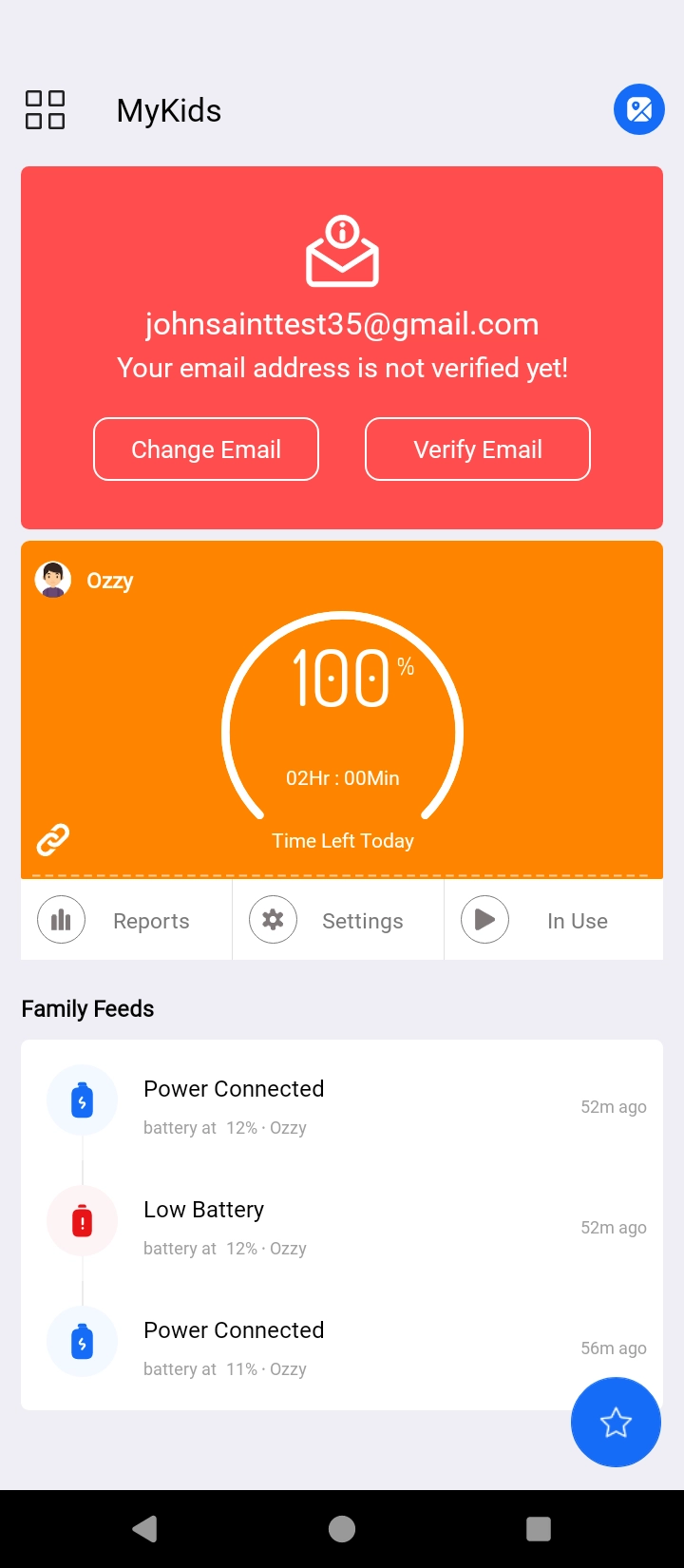
Open the FamilyTime Parent Dashboard and Tap "Settings" under your child's profile.
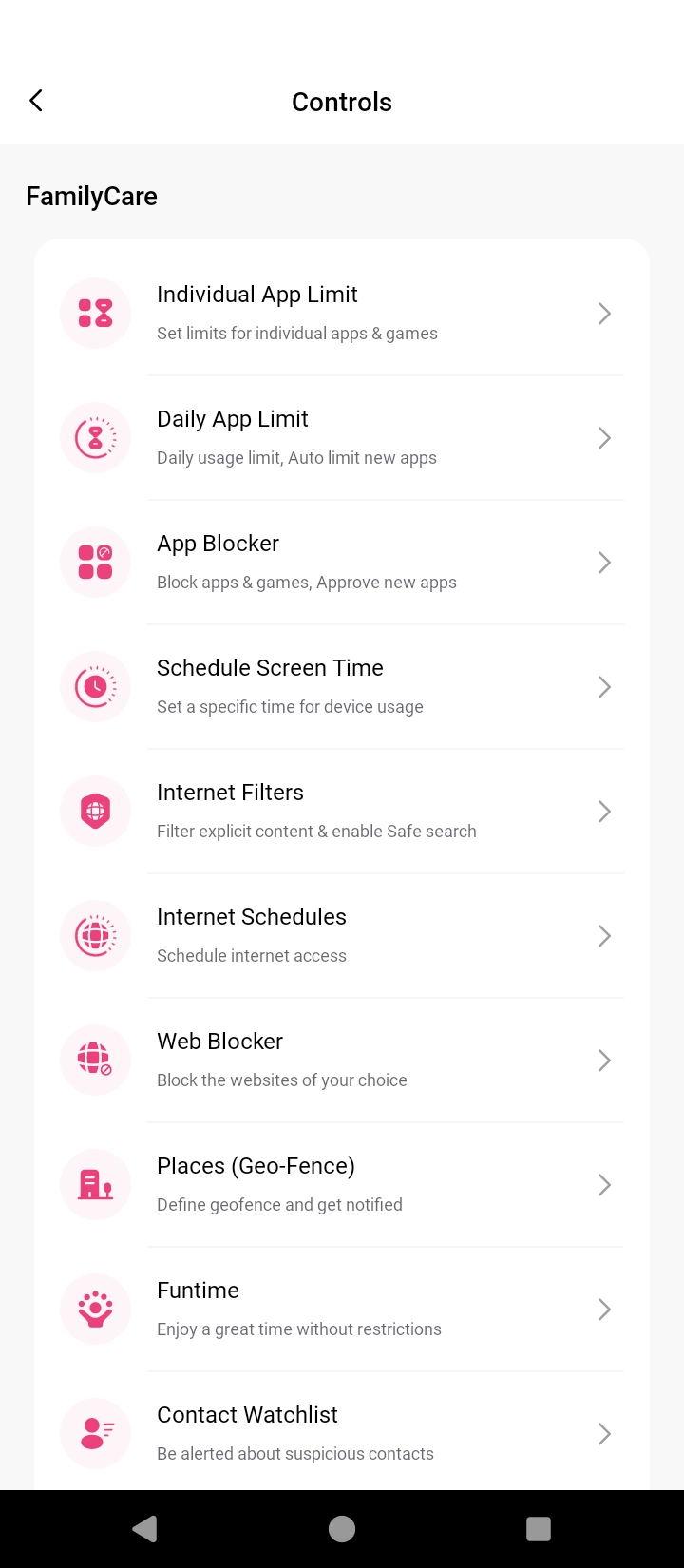
Tap the "Places (Geo-Fence)" option under the "FamilyCare" section.
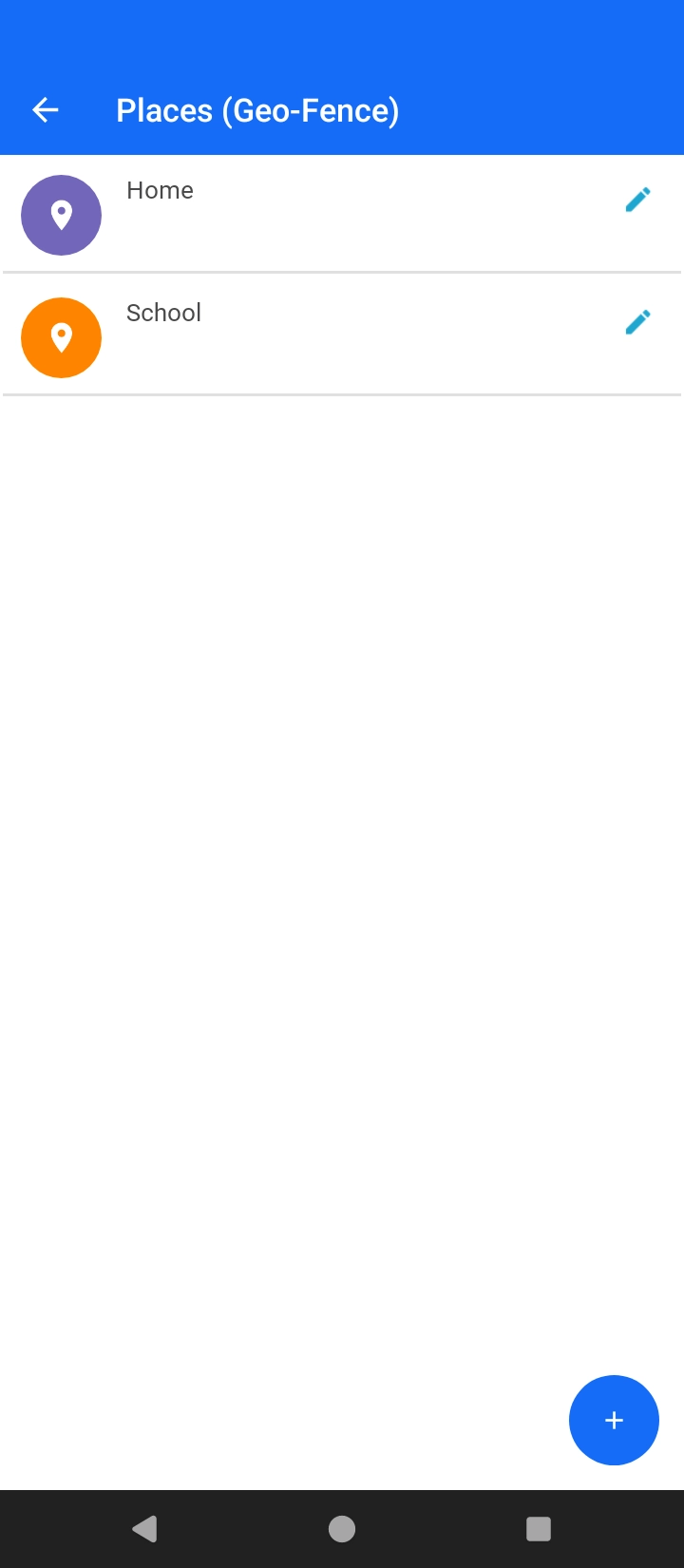
Tap the "+" sign at the bottom right of the screen.
Type the address in the search box or drag the pin to your desired location for marking.
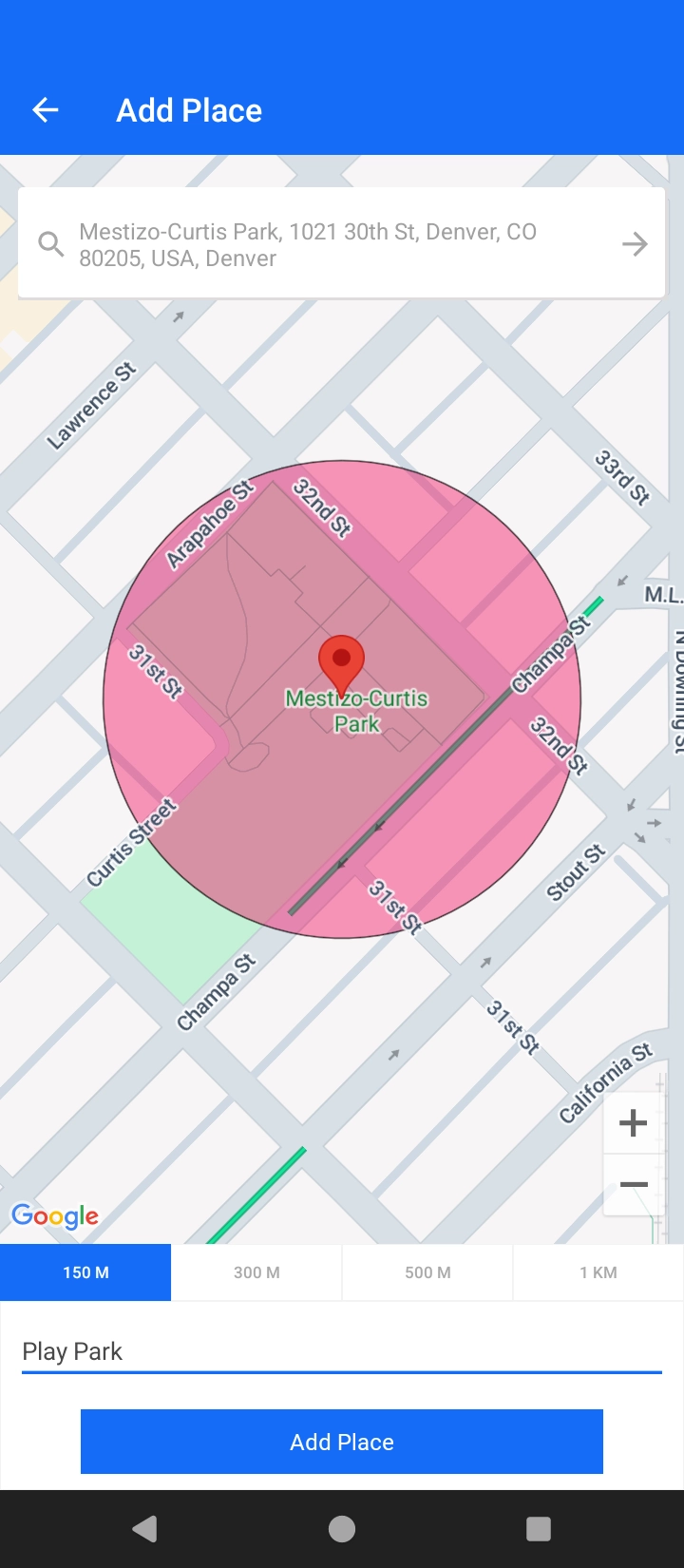
Select the distance range for the geo-fence from 150 meters to 1 kilometer.

Add the place name.
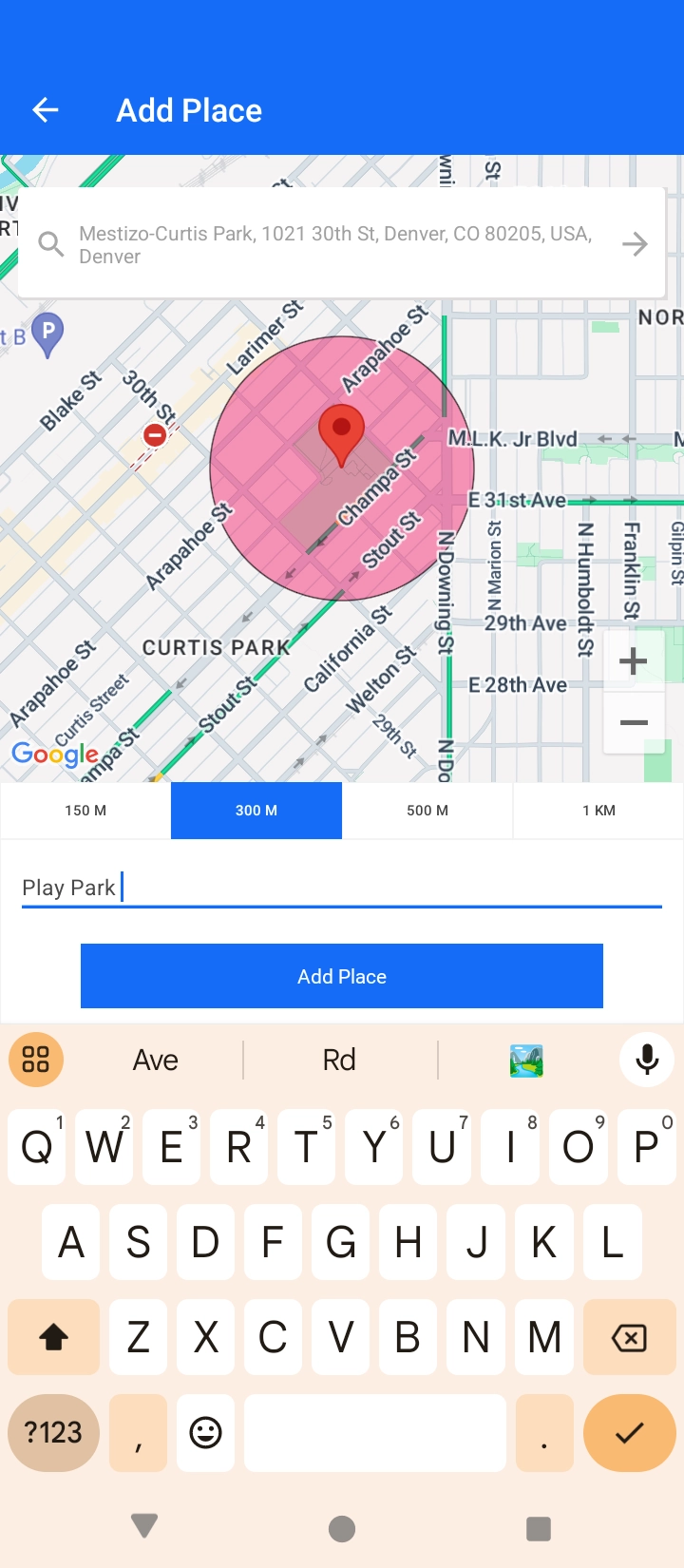
Tap "Add Place" to confirm. Tap "Save" and it's done!
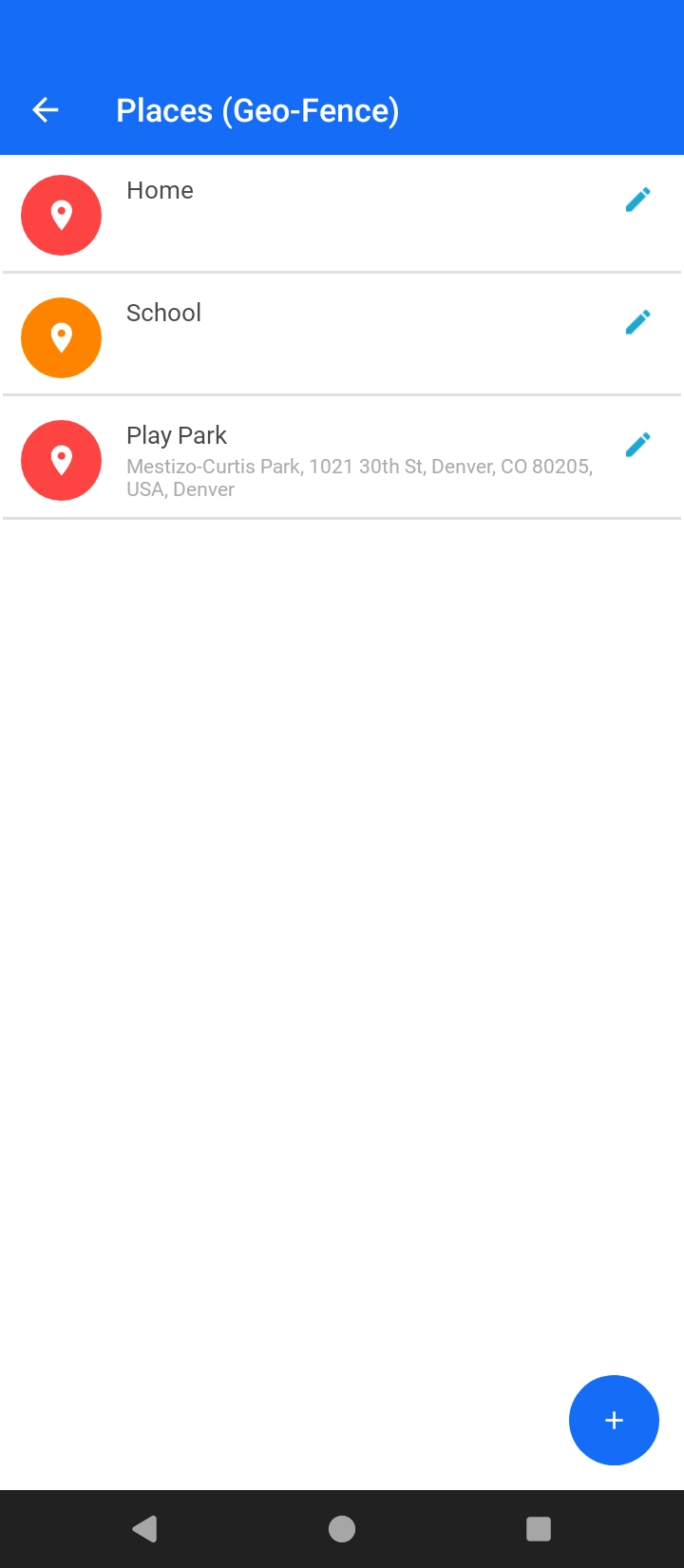
Now, it's all set; whenever your child enters or leaves the place, you will get a notification.
You can add multiple geo-fence places to the section to monitor your child's movements. The feature reduces your need to review your child's live location continuously. Instead, you will get alerts about their movements.
How does FamilyTime Places Feature Help?
FamilyTime Places (geo-fence) feature can help ease your parenting in various ways. Here are some of the ways the Places feature can help you:
Eliminate the need for continuous monitoring.
You can make it easy for your child to go to places during the day. There is no need to review the location now and then. You will be notified when your kid moves in/out of a marketplace.
Instant Alerts
You will get immediate geo-fence alerts about your kids reaching or moving from a specific place like home, school, play parks, and more.
Best Practices – Tips to Using FamilyTime Places Feature
Here, we share some best practices to make the most out of the FamilyTime Places feature. You can use the feature according to your needs or consider doing the following:
- Add places like home, school, and address of their co-parent to your Places list and get check-in alerts to stay updated.
- Define places you think are unsafe for your kids, like bars, downtown casinos, or gaming spots, and instantly know if they wander down the shady areas.
- Get a heads up when your kids don't reach home on time.
- Check their current location to know what's keeping them from home.
- Add as many places to your Places list when you're out from home, keep getting alerts and know all is going well at home.

Need an Advice?
Not sure about something or want to have a quick word with one of our experts? No worries, our parenting experts are here for you 24/7! Click the button below and get to talk to our Expert right away!