

How to Setup / Use App Blocker on iOS Devices?
Blocking unwanted apps on iOS devices is pretty simple using the given step-by-step instructions:
Open the FamilyTime Parent Dashboard. Tap “Settings” on your child’s profile.
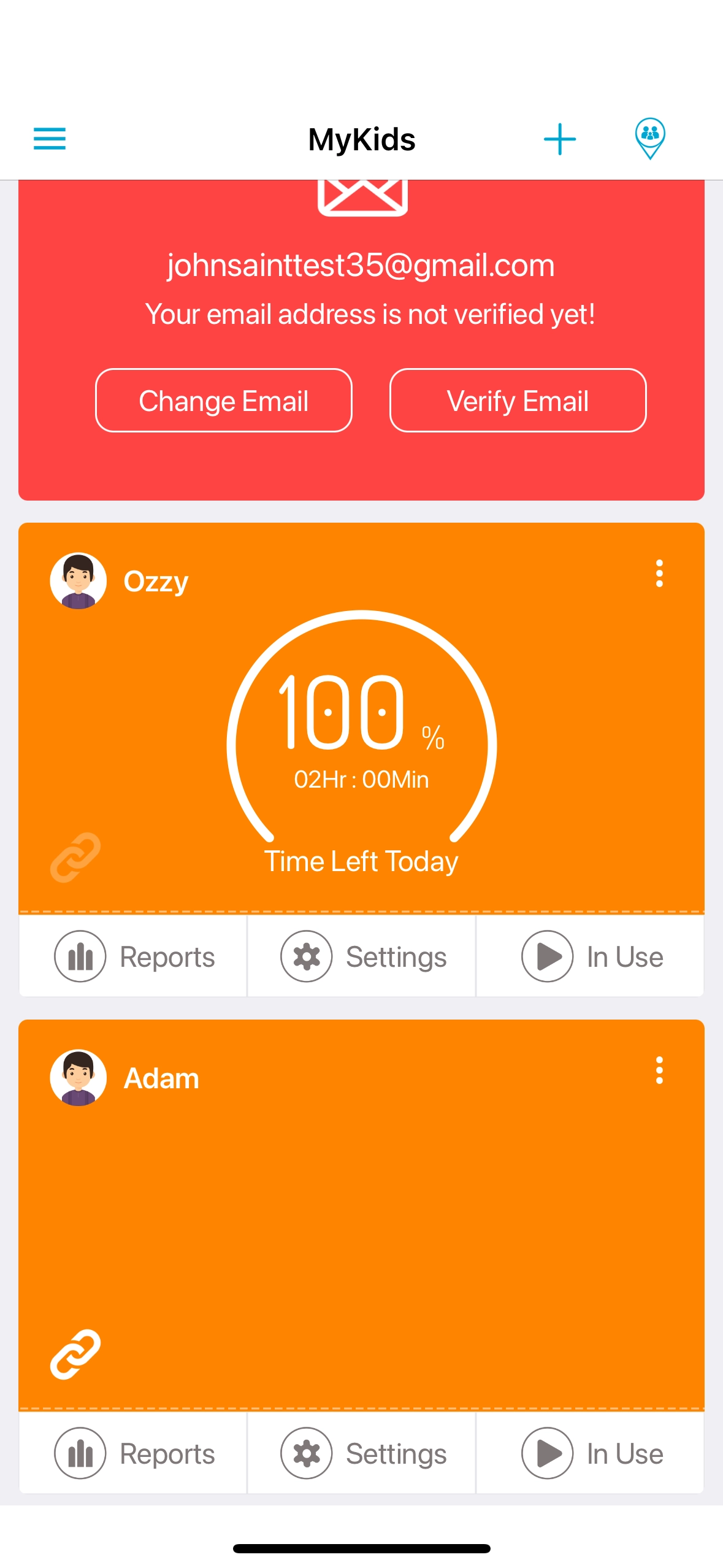
Tap “App Blocker” from the Family Care section.

Toggle on “Enable App Blocker”.

Toggle on all the apps and options you want to allow and tap “Save” at the top right corner.
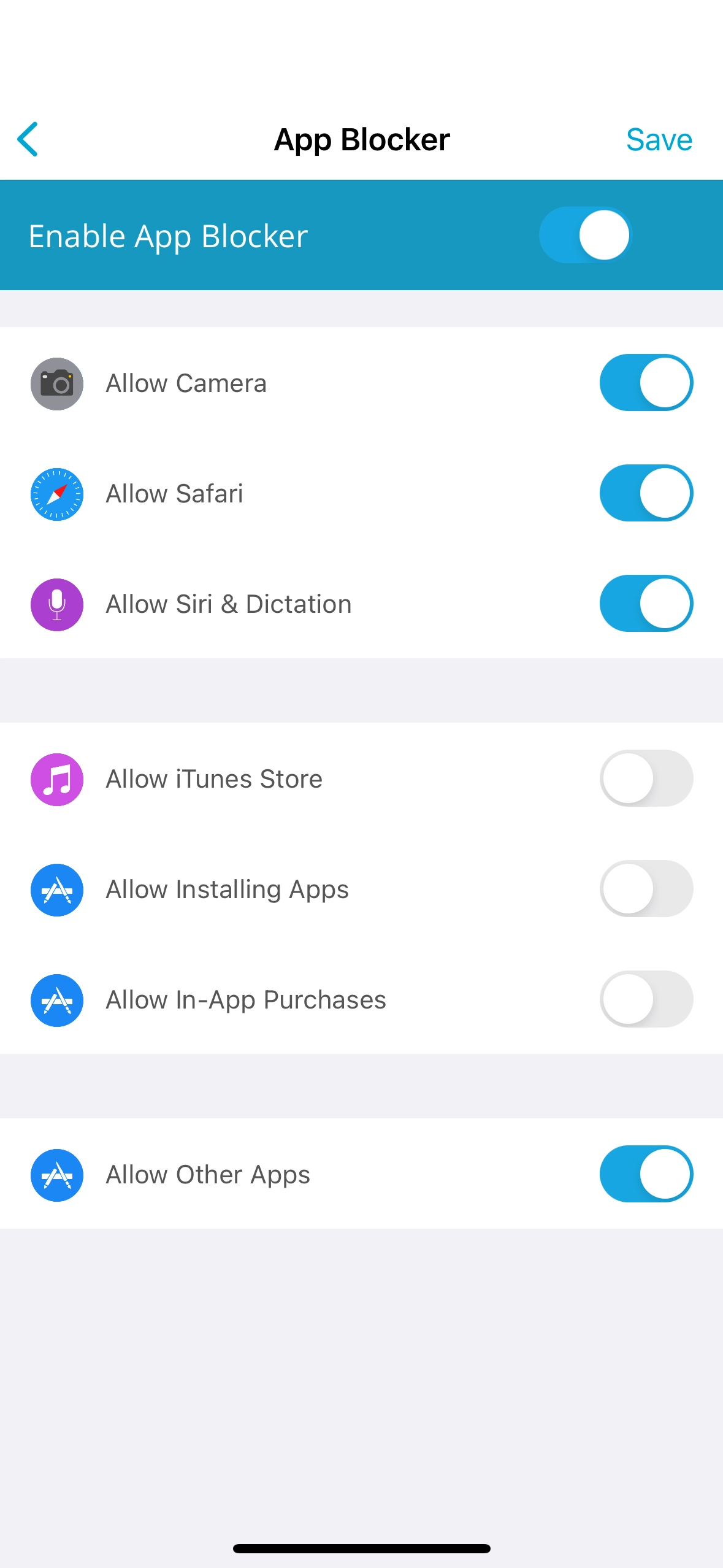
Confirm the settings to implement on the child’s device.


Need an Advice?
Not sure about something or want to have a quick word with one of our experts? No worries, our parenting experts are here for you 24/7! Click the button below and get to talk to our Expert right away!